How to Add Friends in Geometry Dash (2026 Guide)
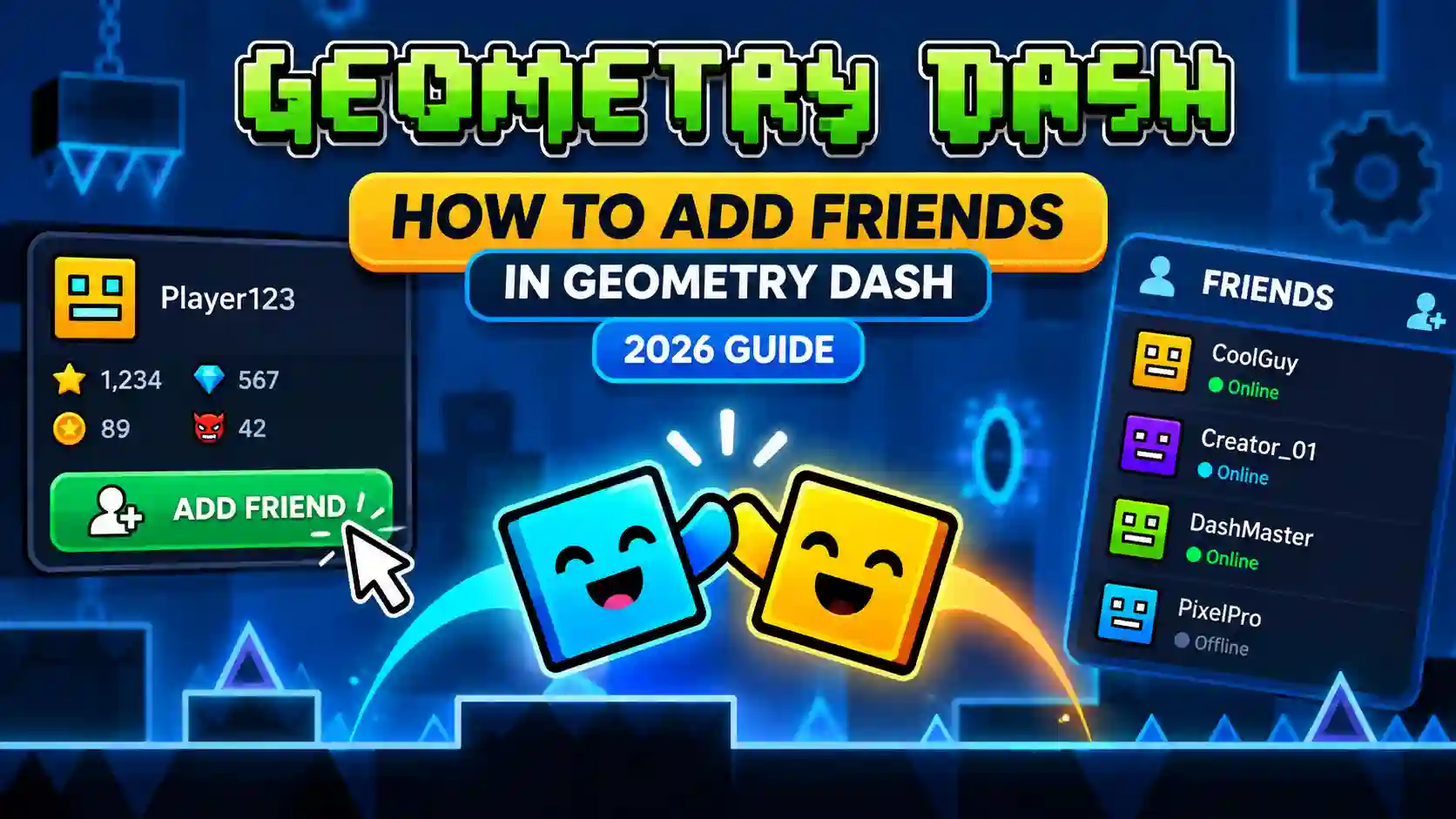
Adding friends in Geometry Dash starts with finding the right player profile and sending a friend request. You can find players through their username, profile, or the levels they have created, then use the profile page to send the request. The other player must accept it before you become friends.
Knowing how to add friends in Geometry Dash is useful if you follow certain creators, want to share custom levels, or simply want to keep track of players you know. How to add friends in Geometry Dash also depends on having a working registered account, since the game’s online profile and friend features are tied to your account.
Why Add Friends in Geometry Dash?
Adding friends in Geometry Dash gives you an easier way to keep up with players whose levels, progress, or creations you enjoy. Your friends list can also make it easier to find their recent custom levels and compare your progress with theirs through the Friends leaderboard.
Some of the main things you can do with friends include:
The Friends section is especially useful for players who regularly follow certain creators. Instead of searching for the same usernames or levels again, you can keep those players on your friends list and check their latest activity from the game.
Create a Geometry Dash Account First
You need a registered Geometry Dash account before you can use the game’s online friend features. If you already have an account, make sure you are logged in before searching for another player.
To create an account:
- Open Geometry Dash and go to the Settings menu.
- Open the Account section.
- Select Register to start creating your account.
- Enter the required username, email address, and password.
- Complete the registration and email verification steps.
- Log in to your new account in Geometry Dash.
Once your account is active, you can use the online features tied to your player profile, including friend requests and other social features. You can then move on to finding the player you want to add.
Steps to Add Friends in Geometry Dash
Once your Geometry Dash account is ready, you can find another player through their username, account ID, or one of their custom levels. After opening the correct profile, use the friend request option to send them a request. They will need to accept it before you appear on each other’s friends lists.
Search by Username
Searching by username is the simplest way to find someone you already know. Enter the player’s exact username in the player search and check the profile before sending the request.
Watch for numbers and unusual characters in the username, especially when several players have similar names. Once you find the correct profile, open it and select the option to send a friend request. The player will then see the request on their account and can accept it.
Search by Account ID
You can also identify a player through their account ID. Geometry Dash’s account system uses a unique user ID for each account, and the official Wiki notes that accounts can be searched using this ID.
Ask your friend for the correct account ID if their username is difficult to find. Make sure you use their account ID, not a Level ID, since a Level ID identifies a custom level rather than a player account.
How to Accept Friend Requests
When another player sends you a friend request in Geometry Dash, you need to accept it before they are added to your friends list.
To accept a friend request:
- Open your Profile and go to the area where incoming friend requests are shown.
- Find the player who sent the request.
- Open their profile to make sure you have the right account.
- Select Accept to add the player to your friends list.
Once the request is accepted, you and the other player will be connected through the Geometry Dash friends system. If you do not want to add someone, you can leave the request pending or decline it when that option is available.
If a request you are expecting does not appear, check that you are logged into the correct account and that your account settings allow incoming friend requests. Geometry Dash provides privacy controls for friend requests, so another player may have requests disabled.
Can You Add Friends on Different Platforms?
Yes, Geometry Dash’s friend system is tied to player accounts, so you do not need to treat your friends list as a separate feature for each device. Players on supported PC and mobile versions can use their Geometry Dash accounts to access online profile features, including friend requests.
Geometry Dash on PC and Mobile
Geometry Dash is available on platforms such as Steam, Android, Windows PC, and iOS. When using the game on another device, sign in with the same Geometry Dash account if you want to keep using the same online profile. The account matters more than the device you are playing on, so creating a separate account for every platform can make your online profile harder to manage.
Do Friends Need to Be on the Same Platform?
Friends do not need to be sitting on the same device for the account-based friend system to work. You can add another player’s profile through the online features available in Geometry Dash. Keep in mind that adding someone as a friend is not the same as playing a level together in real time. The friends system is built around profiles, levels, leaderboards, and other social features, while multiplayer is a separate feature.
What Can You Do With Friends in Geometry Dash?
Adding someone to your friends list gives you more ways to follow their activity and find content they have uploaded. You can compare your progress, check their levels, communicate through messages, and access content that has been shared with friends.
View Friends on the Friends Leaderboard
The Friends leaderboard lets you compare your progress with players on your friends list. Depending on the category, you can compare stats such as Stars, Moons, User Coins, and Demons instead of checking only the global leaderboard.
See Friends’ Levels and Activity
The Friends option in the level search can help you find recent uploads from players on your friends list. You can also open a friend’s profile to browse their created levels and see what they have been working on. This is particularly useful when you regularly follow Geometry Dash creators and want to find their new uploads without searching for each username separately.
Send Private Messages
Geometry Dash also includes private messaging through player profiles. Message privacy can be controlled through account settings, with options that determine who can contact you. Adding someone as a friend can make communication easier when both players have their message settings configured to allow it.
Access Friends-Only Content
Some Geometry Dash content can be restricted to friends instead of being available to every player. This includes certain unlisted levels and other profile-based content that uses friend privacy settings. For creators, this can be useful when they want to share a level with selected players before making it available more widely.
How to Send a Level to a Friend in Geometry Dash
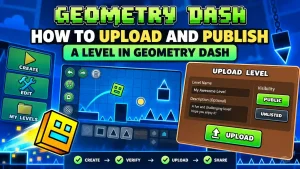
You can share a custom Geometry Dash level with a friend by sending them its Level ID or directing them to your player profile. The Level ID is the quickest option when you want someone to open one specific level.
Share a Level With a Friend
After uploading your custom level, copy its Level ID and send it to your friend. They can enter that ID in the level search to find the exact upload without searching through levels with similar names.
You can also send your Geometry Dash profile so your friend can open your created levels and choose which one they want to play. This works better when you want to share several uploads instead of one specific level.
How Friends-Only Levels Work
Geometry Dash also supports levels with restricted access, which can be useful when you want to share a creation with selected players before making it available more widely. When a level is limited to friends, adding the intended player to your friends list can be part of the process. The access setting matters, so simply giving someone the Level ID does not necessarily give them access to a restricted level.
How to Access an Unlisted Level
When a friend sends you the ID of an unlisted level, enter the exact Level ID in Geometry Dash’s level search. If the creator has limited access to friends, you may need to be on their friends list before the level can be opened. If the level still does not appear, check that you entered the correct ID and that you meet the access conditions set by the creator.
How to Play With Friends on Geometry Dash
Adding someone to your friends list does not automatically put both players into the same level or multiplayer session. Geometry Dash’s current social features are mainly built around player profiles, custom levels, leaderboards, messages, and shared content.
Does Geometry Dash Have Multiplayer?
Geometry Dash has included references to Versus Mode, a feature designed around competing against other players, but its availability has been subject to the game’s ongoing development and updates. The friend system itself should not be confused with a real-time multiplayer lobby.
For most players, playing with friends means taking on the same levels, comparing progress, sharing custom levels, or challenging each other to beat difficult Demon levels.
What Can You Do With Friends Together?
You can create your own challenges by choosing the same level and seeing who can complete it first or achieve the higher percentage. You can also compare Stars and Demon completions, share custom levels for testing, and discuss difficult sections through messages.
For creators, friends can also act as testers for new levels, especially when a level is shared with restricted access. This gives you several ways to compete and collaborate without needing a traditional multiplayer match.
Common Problems When Adding Friends
A friend request can fail for several reasons, from incorrect player information to account privacy settings or a problem with Geometry Dash’s online services. Checking the exact symptom first makes it easier to find the right fix.
Friend Does Not Appear in Search
Start by checking the player’s username and make sure you are looking at the correct account. When you have their account ID, you can use that instead of relying only on the username. You can also open one of the player’s custom levels and use the creator’s profile to find the right account. This can be easier when several players have similar usernames.
Friend Request Is Not Sending
Check whether the other player allows incoming friend requests. Geometry Dash includes account settings that let players control who can send them requests, so a request may not go through when those requests are disabled. If requests are enabled, check that you are logged into the correct account and that other online features are working normally. A wider connection or server issue can affect more than one social feature at the same time.
Cannot Accept Friend Requests
Make sure the request is still available and that you are checking the correct Geometry Dash account. If the request does not appear properly, close and reopen the game before checking the profile again. If the problem continues, check your account settings and confirm that you can use other online features normally. This helps separate an issue with one request from a broader account or connection problem.
Friend Request Button Is Missing
The request option may not be available when the other player’s account does not accept incoming friend requests. Check the player’s profile and account settings before assuming that the game itself is preventing the request.
How to Fix Geometry Dash Friend Request Problems
When a friend request fails, work through the basic checks instead of repeatedly sending the same request.
Check the Username or Player ID
Confirm the player’s exact account details and make sure you are not using a Level ID by mistake. If possible, open the player’s profile from one of their custom levels and send the request from there.
Check Your Internet Connection
Friend requests use Geometry Dash’s online services, so a connection problem can affect the request. If searches, profiles, messages, and other online features are also failing, the problem may be broader than one friend request.
Check Your Account Settings
Open your account settings and check whether incoming friend requests are enabled. Also make sure you are logged into the account you actually want to use. Geometry Dash lets users control friend requests separately from message settings, so changing message permissions will not automatically enable friend requests.
Restart Geometry Dash and Try Again
Close the game completely, reopen it, and check the player profile again. This can refresh an online session when profile or request information has not loaded correctly. If you use Geometry Dash on more than one device, confirm that the same account is loaded before trying again.
Check for Account or Server Issues
If multiple online features stop working at once, check whether the problem affects the game more broadly rather than only your friend’s account. The 2.208 update included improved networking and bug fixes, so keeping Geometry Dash updated is also worth checking when online features behave unexpectedly.
How Many Friends Can You Have in Geometry Dash?
The current maximum is 400 friends on one Geometry Dash account. The limit was raised from 300 to 400 during Update 2.1, so guides that still mention 300 are outdated. If you reach the limit, you will need to remove someone before adding another player. This can also explain why a friend request does not complete when everything else appears to be working.
How to Manage Your Friends List
Your friends list is easier to use when you know how to remove accounts, block players, and control incoming requests.
Remove a Friend
Open the player’s profile and use the available friend-management option to remove the account from your friends list. Removing someone is useful when you simply no longer want that account in your list. It is different from blocking, which adds stronger restrictions to profile access and friend requests.
Block a Player
Blocking a player prevents them from viewing your profile or sending you friend requests. The Geometry Dash profile system includes blocking alongside its other player controls. Use it when removing someone from your friends list is not enough and you do not want further profile interaction.
Disable Friend Requests
You can turn off incoming friend requests from your account settings. Geometry Dash provides a setting that lets you allow requests from everyone or reject incoming requests by disabling them. This is useful when you want to keep your profile available without receiving new friend requests.
Manage Message Settings
Messages have separate privacy controls, so you can choose whether everyone, friends, or nobody can contact you through the game’s messaging system. That gives you more control over your profile without having to disable every social feature.
Tips for Building a Strong Friends List
A useful Geometry Dash friends list is built around players you actually want to follow, play with, or keep in touch with. Instead of accepting every request, look for active players and creators whose levels or progress you enjoy.
- Add creators you enjoy: When you find a custom level you like, check the creator’s profile and consider adding them if you want to follow their future uploads.
- Interact with active players: Players you regularly meet through levels and community challenges are more likely to be useful additions than random accounts you never interact with.
- Keep your list relevant: Remove inactive accounts or players you no longer follow when your friends list starts getting crowded.
- Use the Friends level filter: Check recent uploads from people on your list to find new levels without searching for each creator separately.
- Build connections naturally: Commenting on levels and talking with other players can help you discover people with similar interests in Geometry Dash.
A smaller list of active players can be more useful than a large list filled with accounts you never interact with. Focus on creators and players whose levels, progress, or activity you genuinely want to follow.
Conclusion
Adding friends in Geometry Dash comes down to finding the right player profile, sending a friend request, and waiting for the other player to accept it. You can find players through their username, account ID, or custom levels, depending on what information you have.
Once you know how to add friends in Geometry Dash, you can use the Friends system to follow creators, find their levels, compare your progress, and stay connected with other players. If you run into a problem, check the player’s details and your account settings first, then work through the troubleshooting steps covered above.
Frequently Asked Questions
Can I Add Friends Without an Account?
No. Friend requests and player profiles are part of Geometry Dash’s registered account system, so you need an account to use these features. Verified accounts also unlock additional online features.
Are Usernames Case-Sensitive in Geometry Dash?
Use the exact username when searching because spelling mistakes can lead to the wrong account or no result. Current documentation does not clearly establish capitalization alone as the main way to identify a player, so confirming the exact username with your friend is the safer approach.
How Many Friends Can I Have in Geometry Dash?
You can have up to 400 friends on one Geometry Dash account. The limit was increased from 300 during Update 2.1.
Can I Block Friend Requests?
Yes. Your account settings let you choose whether everyone can send friend requests or whether incoming requests should be disabled. You can also block individual players from your profile.
Can I Add Friends on Different Platforms?
The friend system is tied to online player accounts, so supported PC and mobile versions use the same account-based social system. Cross-platform account access should not be confused with real-time multiplayer.
Can I Play Geometry Dash With Friends?
You can share levels, compare progress, message friends, and follow their uploads, but adding someone to your friends list does not currently put both players into the same standard level session. Versus Mode was introduced as a planned feature but remains delayed in the current 2.208 information.
Why Can’t I Find My Friend in Geometry Dash?
Check the username carefully and make sure you are using the correct account information. You can also open your friend’s profile through one of their custom levels instead of relying only on player search.
Can I Send a Level to a Friend in Geometry Dash?
Yes. Give your friend the Level ID of the published level or direct them to your profile so they can find your uploads. If the level uses restricted access, make sure your friend meets the required access conditions.