How to Use the Geometry Dash Level Editor: Beginner Guide (2026)
Every famous user level, from Bloodbath to Tidal Wave, started as an empty grid inside the Geometry Dash level editor, which is the same tool waiting on your main menu right now. The catch is that so many buttons and tiny arrows fill the screen on your first visit that most new players close it within a minute. This Geometry Dash editor guide takes you through the Geometry Dash level editor one tab at a time, covering setup, your first level, testing and uploading, and every step was checked on Update 2.209.
What Is the Geometry Dash Level Editor?
The Geometry Dash level editor is the building tool that RobTop (Robert Topala) put inside the game so players can make their own levels and share them online. Every user level in the online search, from easy layouts to hard Demons, was built with this same tool by another player.
You need the full version to use it, as our Geometry Dash vs Geometry Dash Lite guide explains. The Geometry Dash 2.2 editor also got new tools for beginners in the 2.209 patch.
How to Open the Level Editor on PC and Mobile
Opening the Geometry Dash level editor takes the same few taps on PC and mobile, because RobTop uses the same menus on Steam, Android and iOS. Follow these steps from the main menu, and you will see an empty grid in under a minute.
- Tap the hammer and wrench icon on the main menu.
- Press Create to open your list of levels.
- Tap New (+) to start a fresh level.
- Type a name and a short description.
- Press the tools button to enter the grid.
Keep the name under 20 characters with only letters and numbers, and the description under 180 characters, because special characters block uploads.
Set Up Your Level Before You Build
Before you place a single block, open the gear icon in the top right corner, because this Level Settings menu decides how your level starts for every player.
Speed, Game Mode and Platformer Settings
Here you can pick one of 5 starting speeds and one of 8 gamemodes, which are the cube, ship, ball, UFO, wave, robot, spider and swing. The Game Type button switches between Classic and Platformer mode, but the wave and swing are disabled in Platformer levels. You can also choose the background and ground, and the font button offers 60 fonts, with Pusab as the default.
How to Add a Song: Newgrounds ID or Music Library
To use a song that is not from a main level, click Custom and then press Select Custom Song. For a Newgrounds track, copy the number at the end of the song page URL, which is called the custom song ID. For example, the ID for “At the Speed of Light” by Dimrain47 is 467339. Only songs from whitelisted artists will work, so some IDs will not load. The Music Library is easier, since it holds 6,000+ songs from NCS and other artists, and you just press Download and then Use.
Build, Edit and Delete Tabs Explained
Everything in a level is an object, and the Geometry Dash level editor gives you three tabs to control those objects. Anyone learning how to use Geometry Dash editor tools has to start with them first.
Build Tab: Place Blocks, Spikes and Portals
The Build tab holds every object in the game, sorted into pages for blocks, spikes, slopes, decorations, portals and triggers. To place something, tap its button in the toolbar and then tap any square on the grid to drop it there. When you need a long floor, turn on Swipe in the bottom right corner and drag across the grid to place many blocks in one go. Gamemode portals, speed portals and gravity portals also live in this tab, and they start working as soon as you drop them into your layout.
Edit Tab: Move, Rotate, Flip and Scale
The Edit tab changes any object you select, and selected objects turn green so you know what you are editing. The move arrows shift objects by 1/60, 1/15 or 1/2 of a block, by one full block, or by 5 blocks at a time. Other buttons rotate objects by 90 or 45 degrees, Free Rotate turns them to any angle, and two flip buttons mirror them on the X or Y axis. Free Move lets you drag objects by hand, while Snap keeps them on the grid. The scale button resizes objects from 0.25 to 4, and Deselect clears your selection.
Delete Tab: Remove Objects Fast
The Delete tab removes any object you tap, which makes quick fixes very easy. With Swipe turned on, you can drag across a whole area to clear many objects at once. The filter buttons let you delete only certain kinds of objects while everything else stays safe.
New Editor Tools in Update 2.209
Update 2.209 gave the Geometry Dash level editor four new tabs that sit beside Build, Edit and Delete. The View tab holds Preview Mode, Hitboxes, LDM, Ignore Damage and Death Markers, which show where players keep crashing in your level. The Helper tab collects Align X, Align Y, Select All and Build Helper, which used to hide inside the pause menu. The Grid tab changes the grid size, and Shift+G on PC switches to your custom size. The Visibility tab hides the interface so you see the level like a player, and the Tab key does this on PC. With hitboxes on, blue marks solid objects, red marks hazards, and green marks orbs, pads, portals and anything you touch.
How to Build Your First Simple Level, Step by Step
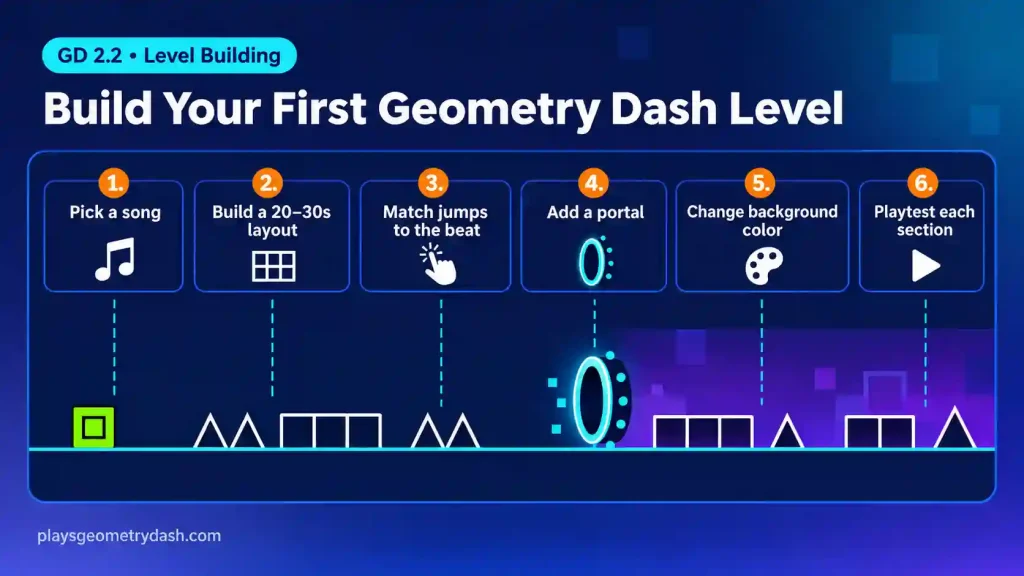
The best way to learn how to make a level in Geometry Dash is to build a short one right away instead of reading about every button first. When I made my first proper layout, these six steps turned a blank grid into something my friends could play from start to finish.
- Pick a song in Level Settings, then use Create Lines in the song menu to tap along with the beat and mark music guidelines.
- Build a 20 to 30 second layout with empty outline blocks, because plain outlines are easy to fix now and decorate later.
- Place spikes and jumps on the guidelines so every click matches the beat, which players call sync.
- Drop a ship or ball portal halfway through so the level changes gamemode and stays fun to play.
- Add a Color trigger near that portal to change the background color for the new part of the level.
- Playtest each section once you finish it, because fixing one bad jump early beats fixing ten at the end.
Working this way inside the Geometry Dash level editor keeps your first project small enough to finish. When you want more, GD Creator School has free lessons on layouts, gameplay and decoration.
Basic Triggers Every Beginner Should Know
Triggers are the colored circles you see in the Geometry Dash level editor, and they stay invisible while someone plays your level. Each trigger changes other objects, and most of them use Groups, which are ID numbers you give objects so the trigger knows what to target. Many triggers also have a Duration, which is how many seconds the change takes. The Color trigger changes the background, ground or any color channel. The Move trigger slides a group to a new spot, the Alpha trigger fades objects in or out, and the Toggle trigger turns a group on or off. These four cover your first levels, and even Stereo Madness only uses Color triggers for its background and ground.
How to Test Your Level: Playtest, Start Pos and Save & Play
Testing in the Geometry Dash level editor works in a few ways, and each one checks something different. Playtest is the green play button on the left, and it runs your level inside the editor while a green line shows the exact path your icon took.
Editor physics are slightly different from normal play, so always try the real level too. Music Playtest sends a green line across the screen with the song to check sync. A Start Pos trigger lets you test from the middle, and Save & Play runs the full level, which is the run you use to verify level completion.
How to Verify and Upload Your Level
To verify a level in the Geometry Dash level editor, you must beat it in normal mode from 0%, remove every Start Pos, and collect all user coins. The coins do not have to come in one attempt, but a run in practice mode never counts toward verification.
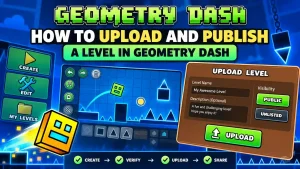
Next, press the red upload button, tick Request Stars, and pick Unlisted if only friends with the ID should play it. Our Geometry Dash Difficulty Levels Explained guide helps you choose a fair star request. Every level is free to copy in 2.2, and a level RobTop rates earns you creator points. Editing it makes it unverified again, so export a .gdlvl backup first and check our How to Upload and Publish a Level in Geometry Dash guide.
Geometry Dash Editor Keybinds for PC
If you play on Steam, the Geometry Dash editor keybinds will speed up your building more than any other habit. The keys below work in the Geometry Dash level editor on PC, but you cannot change them.
| Key | Action |
| 1 / 2 / 3 | Build, Edit, Delete |
| W A S D | Move object |
| Shift + W A S D | Small move |
| Q / E | Rotate 90° |
| Alt + Q / E | Flip |
| Ctrl + C / V / D | Copy, paste, duplicate |
| Ctrl + Z / Ctrl + Shift + Z | Undo, redo |
| Enter | Playtest |
| Ctrl + Enter | Music preview |
| Esc | Pause menu |
| T / F / G | Swipe, Free Move, Snap |
If you use the Geometry Dash editor on mobile, turn on Hold To Swipe in the editor settings so holding your finger down starts a swipe. Our Geometry Dash Controls Guide (PC & Mobile) covers normal gameplay controls.
Common Beginner Mistakes in the Editor
Most new creators hit the same small problems, and each one has a quick fix.
- If dragging stops moving the screen, Swipe is turned on, so turn it off or use the top slider.
- A forgotten Start Pos blocks verification, so delete every one before you try to upload.
- Practice mode helps with hard parts, but our Practice Mode vs Normal Mode guide explains why practice runs never verify a level.
- Lite players often search the menus for the editor, but it only exists in the full game.
- If the camera will not move while you build, turn on Camera Follow in the pause menu.
FAQs
Can you make levels in Geometry Dash Lite?
No, Geometry Dash Lite has no editor, so you need the full paid version to build and upload levels. Lite only lets you play some main levels.
How do I edit an existing level in Geometry Dash?
Open Create, tap your saved level and press the tools button again. Since Update 2.2, other players’ levels can be copied too, so you can edit those copies.
How do I use portals in the Geometry Dash level editor?
Portals sit in the Build tab with blocks and spikes. Tap the portal you want, such as a ship or gravity portal, and place it anywhere on your grid.
What does Ctrl+R do in Geometry Dash?
With Quick Keys on, Ctrl+R fully resets a level to attempt 1 while you play. Pressing only R restarts you from your last checkpoint or the start.
Can I use any song in my Geometry Dash level?
No, only songs from whitelisted Newgrounds artists or the Music Library will work. Any other Newgrounds ID will not load in your level, even if the song page exists.
Conclusion
Once you know what each tab does, the Geometry Dash level editor stops looking scary and starts feeling like a big box of building blocks. Start with a short layout, test it, verify it in normal mode and share it with friends. After that first one goes live, you can upload level after level, and the 206-page official guide by ViPriN and AutoNick will help with advanced features.