Best Geometry Dash Settings for PC, Android, and iOS to Reduce Lag and Improve Gameplay
Game lagging right when you are about to win a level?
You press jump, but the cube reacts late, and you crash into a spike.
Many players think it is a skill issue, but most of the time, it is just bad game settings.
Introduction
When people play Geometry Dash APK, they expect smooth gameplay. The jumps should feel fast, and the controls should react the moment you tap or click. But many players face lag, stutter, or slow response, which makes the game feel harder than it actually is.
In many cases, the problem is not your device but your game settings. Small changes inside the game can create a big difference. Even on a low-end PC or mobile, the right settings can help the game run much better.
If you already downloaded Geometry Dash APK or installed Geometry Dash for PC or Geometry Dash for iOS, this guide will help you get the best performance. You will learn how to fix lag, reduce delay, and enjoy better gameplay without changing your device.
This guide is made for beginners and regular players. You do not need technical knowledge. Just simple changes explained in a clear and easy way.
Why Geometry Dash Settings Matter for Performance
Many players ignore settings when they first start the game. They open Geometry Dash and begin playing right away without checking anything. At first, everything may feel fine, but when levels become harder, even small delays start to feel like a big problem.
Geometry Dash is a fast reaction game where every jump depends on timing. If the game runs slowly, even by a tiny amount, your timing breaks. That is when you start missing jumps that you would normally make.
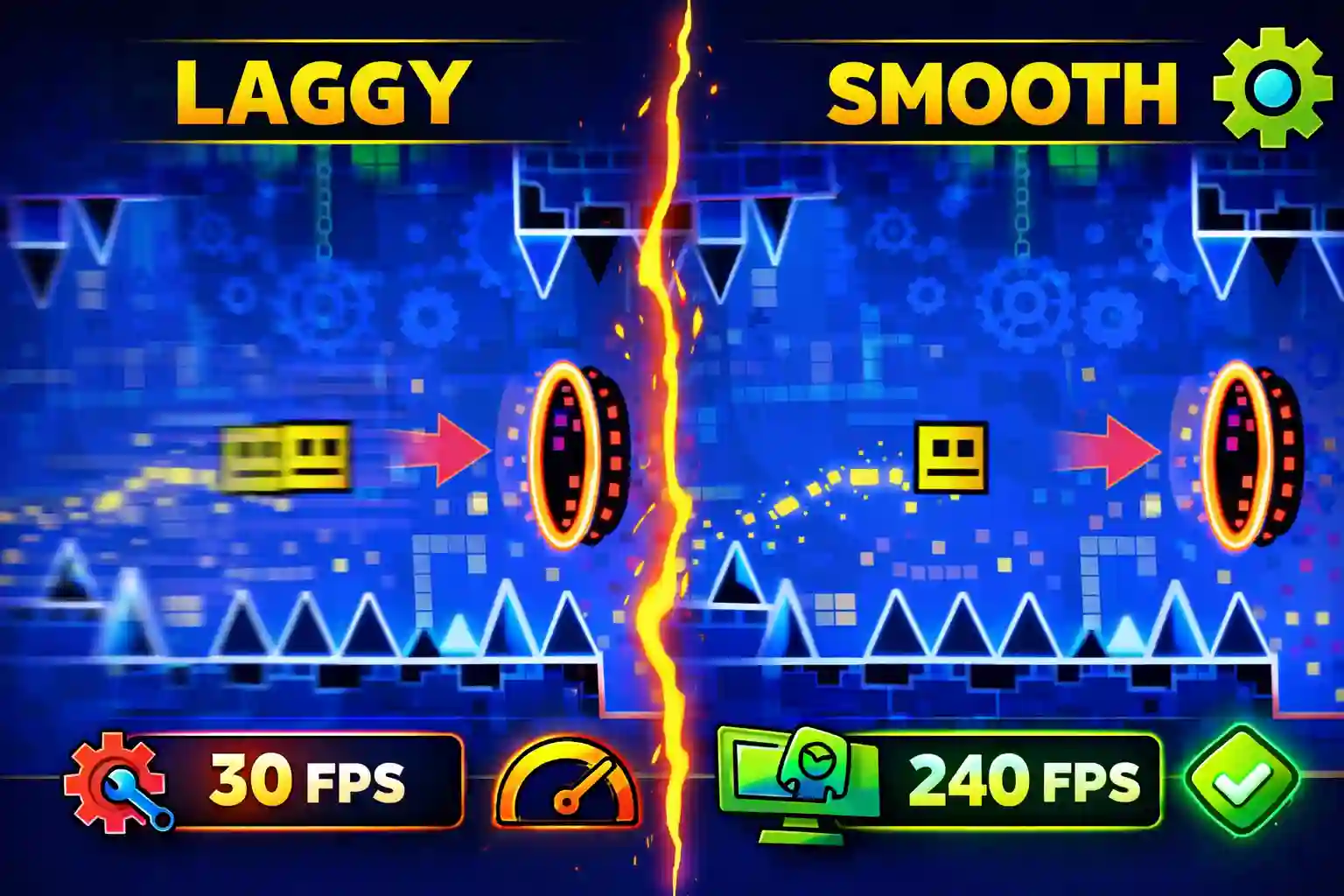
One common problem is low FPS. FPS means frames per second. In simple words, it shows how many images your screen displays each second. When FPS is high, the game feels smooth. When FPS drops, the game starts to look choppy and less responsive.
Another issue is input delay. This happens when your tap or click takes extra time to get detected by the game. When this delay appears, your controls feel slow, even when you press at the right moment.
Players using Geometry Dash APK, Geometry Dash for PC, or Geometry Dash for iOS often face these problems, especially on older devices. The good news is that proper settings can fix many of these issues and improve gameplay.
If you are new to the game, it is also helpful to read the Beginner Guide for Geometry Dash before adjusting settings, because understanding the basics makes these changes easier to follow.
Best Geometry Dash Settings for PC
Many players prefer Geometry Dash for PC because it offers better control and smoother gameplay. Using a keyboard or mouse often feels more accurate than tapping on a screen. But even powerful computers can start to lag if the game options are not set correctly.
Inside the PC version, you will find several options that directly affect performance. These controls manage graphics, screen behavior, and game timing. When you adjust them the right way, the game can run much faster and feel more responsive.
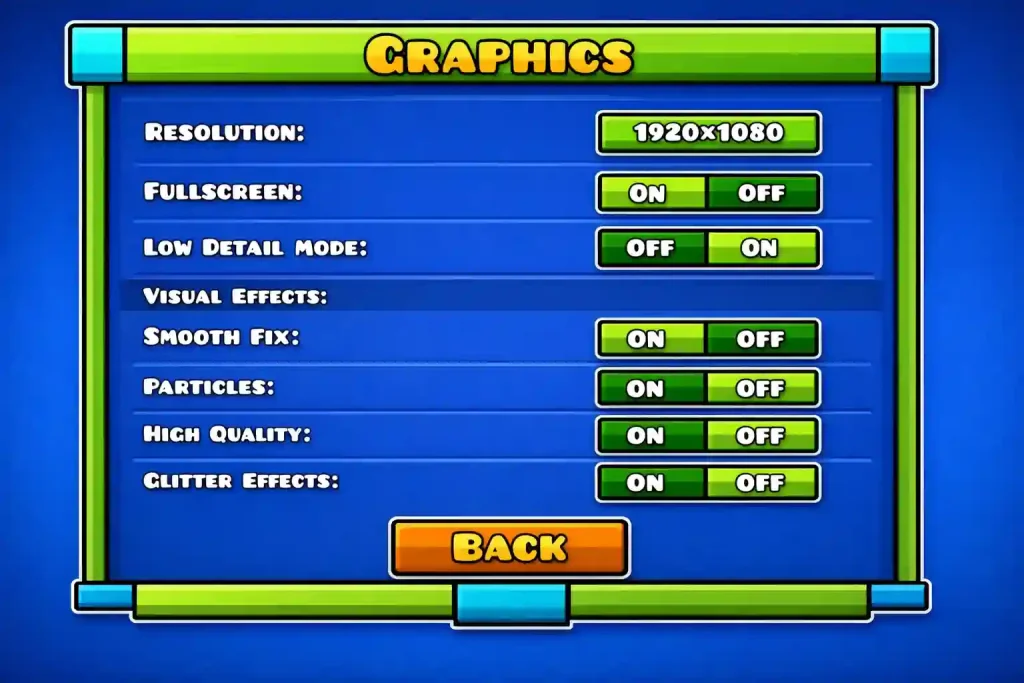
Best Graphics Settings for Geometry Dash on PC
Graphics settings control how detailed the game looks on your screen. High graphics may look attractive, but they also use more system power. If your PC is not strong enough, the game can start lagging during heavy or complex levels.
Many players believe that higher graphics always mean better gameplay. In reality, fast games like Geometry Dash need smooth performance more than visual detail. When the game runs smoothly, your jumps feel more accurate and easier to control.
If your PC is low-end or mid-range, lowering graphics settings can improve gameplay very quickly. Turning off extra visual effects allows your system to focus more on game performance instead of unnecessary visuals.
For example, when you play long or complex levels, many objects appear on the screen at the same time. This makes your system work harder to keep up. Lower graphics settings reduce this load and help the game run more smoothly.
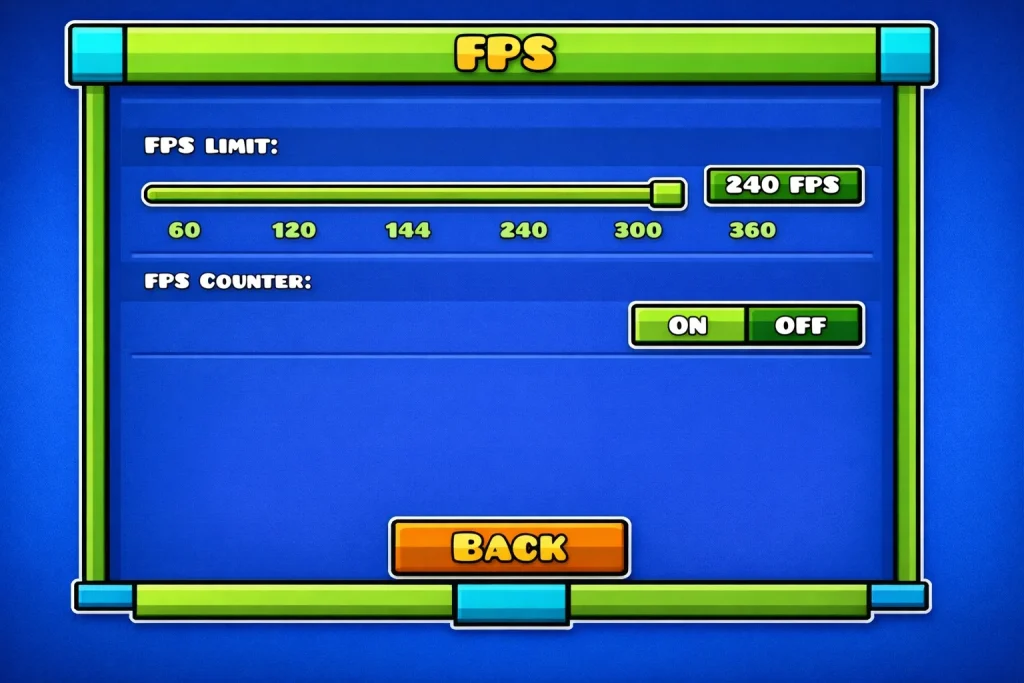
Best FPS Settings for Geometry Dash on PC
FPS has a big effect on how smooth the game feels. When the frame rate stays steady, your jumps feel natural and easier to control.
Some players notice sudden FPS drops while playing. This usually happens when too many effects or objects appear on the screen at the same time, especially during busy levels.
If your PC supports higher FPS, turning it on can make movement feel smoother during fast levels. But if your computer is not strong enough, setting FPS too high can actually create more lag instead of fixing it.
Many skilled players prefer a steady frame rate instead of chasing very high numbers. A stable game feels easier to control and helps you keep your timing accurate.
If you want to improve gameplay even more, it is also helpful to read the Controls Guide for Geometry Dash. Control settings and frame rate work together, and both affect how quickly your jumps react.
Best VSync Settings for Geometry Dash on PC
VSync is one more setting that can change how smooth the game feels. This option connects the game speed with your screen refresh rate, which means how fast your screen updates images every second.
In some cases, VSync makes the game look smoother and more stable. But on certain computers, it can also create a small delay. That delay feels like your jump happens slightly late, even when you press at the right moment.
Many players test gameplay with VSync both on and off to see what feels better. If your jumps feel delayed or slow, turning VSync off can often improve response time.
On the other hand, if you notice screen tearing, where the screen looks split or broken while moving, turning VSync on may fix that problem. Every PC behaves differently, so trying both options is usually the best way to find what works for your system.
Best Window Mode Settings for Geometry Dash on PC
Some players run Geometry Dash in fullscreen mode, while others prefer window mode. Both modes behave slightly differently when it comes to performance, even though the game looks almost the same.
Fullscreen mode usually gives better performance because the game gets full system attention. When you play in fullscreen, your computer focuses more on the game instead of other background programs.
Window mode can sometimes reduce performance slightly, especially on weaker PCs. If other apps are open in the background, your system may split its power between multiple tasks, which can cause small lag or stutter.
If you are using Geometry Dash for PC, running the game in full screen is usually the better choice for smooth game play. Most players notice faster response and fewer delays when full screen mode is enabled.
Best Geometry Dash APK Settings for Android
Many players enjoy playing Geometry Dash APK on Android devices because it allows them to play anytime and anywhere. Mobile game play feels convenient, but it can also become frustrating when lag starts to appear during harder levels.
Android phones are not all the same. Some devices are powerful and handle the game easily, while others are more basic and struggle during complex levels. Because of this, your game settings should match the strength of your device to get the best performance.
Best Geometry Dash Settings for Low-End Android Devices
Low-end Android phones often struggle when levels become heavy or crowded. You may notice stutter when too many objects appear on the screen at the same time.
Instead of raising graphics quality, reducing extra visual effects helps your phone run more smoothly. Turning off unnecessary effects makes the game easier for your device to handle without slowing down.
For example, when you play difficult levels, many animations appear all at once. These animations use phone memory and phone power. Reducing visual effects helps keep the gameplay smooth and stable.
Many beginners think their phone is simply too weak to run the game properly. But in many cases, small setting changes can solve the problem without needing to upgrade the device
Best Geometry Dash APK Settings for Medium Android Devices
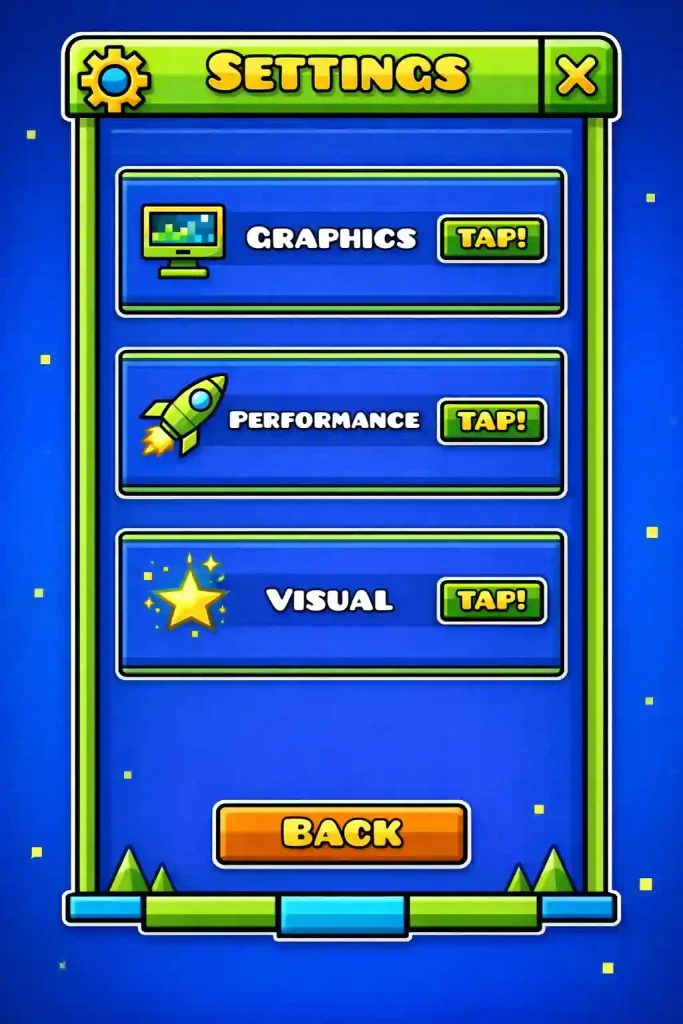
Medium-level Android devices can handle more visual effects than low-end phones, but they still need carefully balanced settings. If the settings are too high, the game may start to lag during longer or more complex levels.
In most cases, medium graphics work better than very high visuals. This keeps the game looking good while still maintaining steady performance during fast gameplay.
If your device starts to heat up during long play sessions, slightly lowering the settings can help reduce heat. When phones become too hot, they often slow down automatically, which leads to lag and sudden frame drops.
Many players also notice better performance when they reduce screen brightness and close background apps. These small changes free up phone power and help the game run more smoothly.
Best Geometry Dash Settings for High-End Android Devices
High-end Android phones usually run Geometry Dash APK very smoothly. But even powerful devices can start to lag if the settings are pushed too high during long or heavy levels.
Instead of setting everything to the maximum level, keeping balanced graphics often gives better results. High settings may look attractive, but balanced options keep the game running smoothly and prevent sudden slowdowns.
High-end devices also benefit from high refresh rate screens. A refresh rate means how many times your screen updates each second. If your phone supports higher refresh rates like 90Hz or 120Hz, turning them on can make movement feel much smoother and more responsive.
Even on strong devices, reducing a few unnecessary effects can help during very complex levels. This keeps the game stable and prevents small frame drops during fast gameplay.
Best Geometry Dash Settings for iOS
Players using Geometry Dash for iOS usually enjoy smooth and stable gameplay. Apple devices often run games very well, but the right settings still make a noticeable difference.
Even powerful iPhones or iPads can slow down during long play sessions or heavy levels filled with many objects. When the device heats up or works too hard, small lag or frame drops can start to appear.
Adjusting a few simple settings can help keep gameplay smooth and responsive, especially during fast levels where timing matters the most.
Best Geometry Dash Settings for iPhone
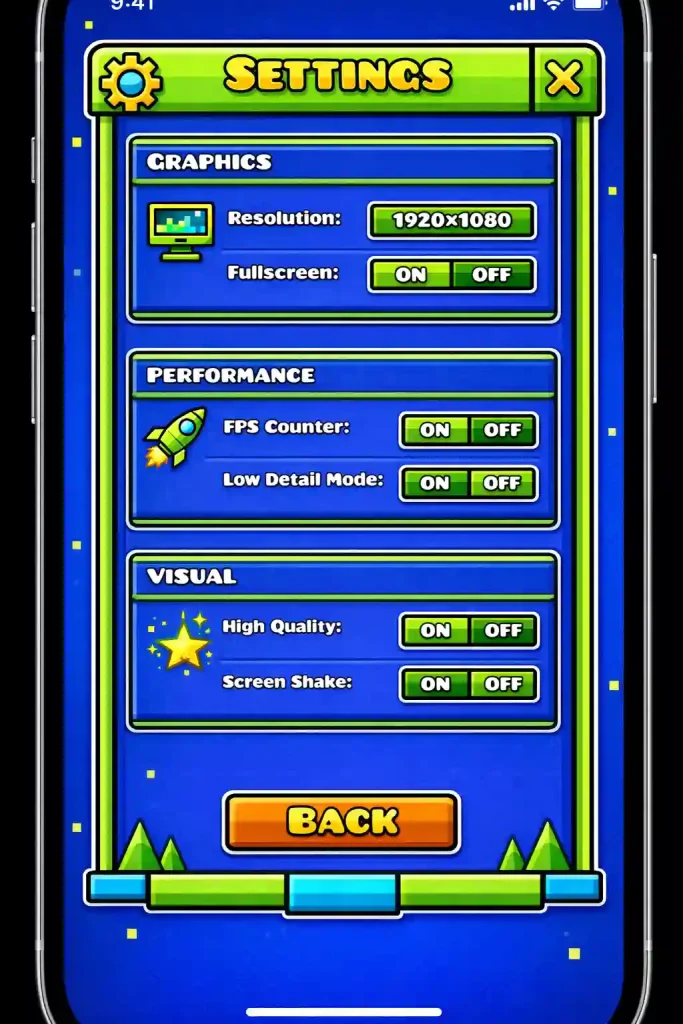
Most iPhones run Geometry Dash very smoothly without major problems. However, turning off extra visual effects can make the game run even better during difficult or crowded levels.
If your phone starts to feel warm while playing, slightly lowering visual settings can help reduce heat. When an iPhone gets too warm, it may slow down automatically, which can cause small lag or frame drops.
Many players also close background apps before starting the game. This gives more phone memory to Geometry Dash and helps reduce lag, especially during longer play sessions.
iPad Settings
iPads have larger screens, which makes everything easier to see. However, larger screens also need more power to show graphics smoothly.
Keeping balanced settings can help prevent slowdowns, especially during long play sessions.
If you play competitive levels, stable performance is usually more important than visual beauty.
Best Geometry Dash Settings for Low-End Devices Very Important Section
Many players think Geometry Dash APK lag means their device is simply too weak. But that is not always true. In many cases, the device is strong enough, but the game settings are too heavy for it.
Low-end devices need lighter settings so they can focus on running the game properly. When too many effects appear on the screen at the same time, the device tries to load everything together. That is usually when lag begins.
If you are using an older PC or a basic Android phone, reducing extra visuals can make a huge difference. The goal is not to make the game look fancy but to make it feel smooth and easy to control.
When the game runs smoothly, your jumps become more accurate. Levels that once felt impossible start to feel easier. Many players notice better results after reducing visual effects, even without changing their device.
Low-end users should also avoid running too many apps in the background. Extra apps use phone memory and slow the game down. Closing them gives more power to Geometry Dash APK and keeps gameplay stable.
If your device still struggles with heavy levels, you may also find help in the Troubleshooting Guide for Geometry Dash, where common problems are explained in simple ways.
How to Reduce Lag in Geometry Dash (Step-by-Step Guide)
Lag is one of the most common problems players face in Geometry Dash. It often appears suddenly during fast levels where many objects show up on the screen at the same time.
Lag usually happens when your device struggles to handle too many things at once. When this happens, you may notice delayed jumps or small freezes that break your timing.
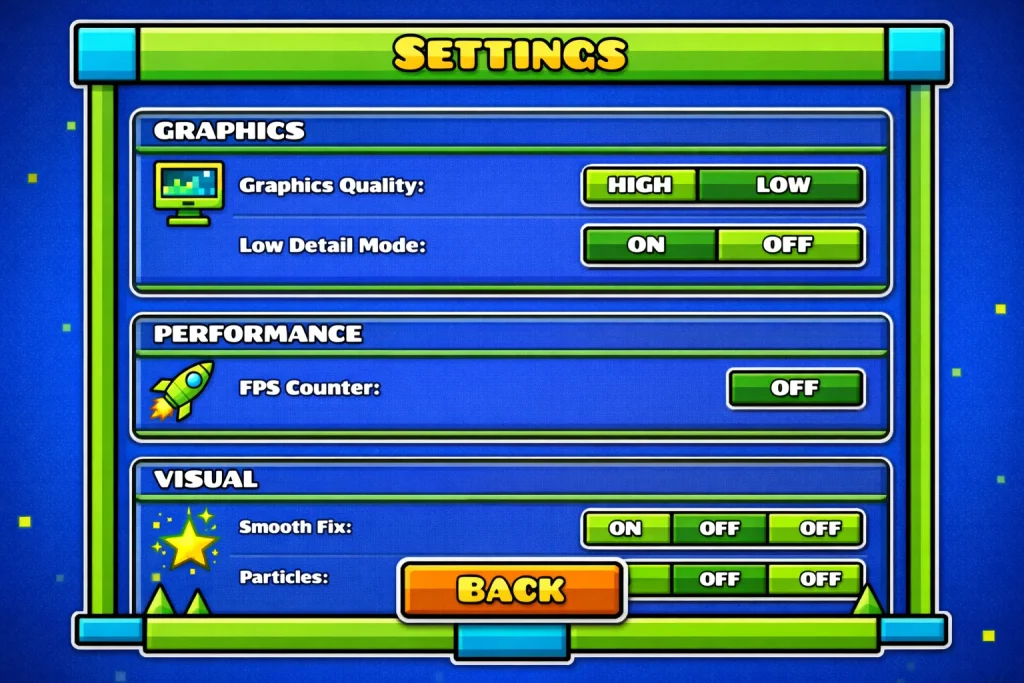
Fixing lag usually starts with a few simple changes. For example, lowering visual effects helps your device handle fewer objects at one time. This reduces pressure on your system and makes gameplay feel smoother.
Another helpful step is restarting your device before long gaming sessions. When devices run for many hours, temporary memory becomes crowded. Restarting clears that memory and often improves performance right away.
Keeping your game updated is also important. Updates often fix small bugs that can slow the game down. Many players skip updates, but these updates usually include improvements that make gameplay smoother.
Players using Geometry Dash APK, Geometry Dash for PC, or Geometry Dash for iOS should also check their device storage. If storage space is almost full, the game may slow down without warning.
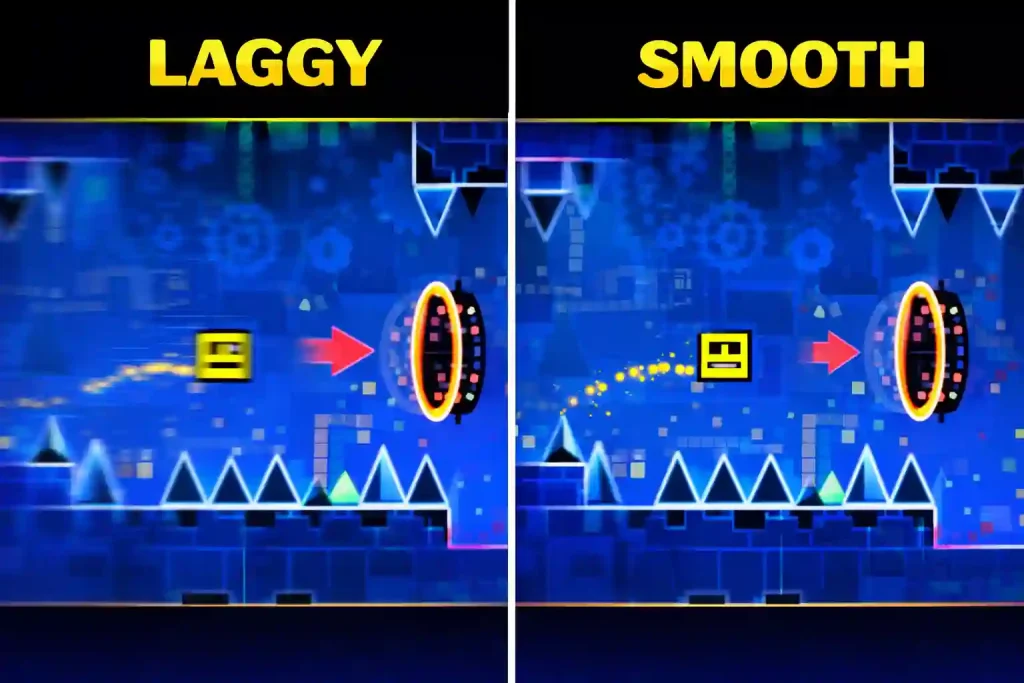
How to Increase FPS in Geometry Dash (Simple Methods That Work)
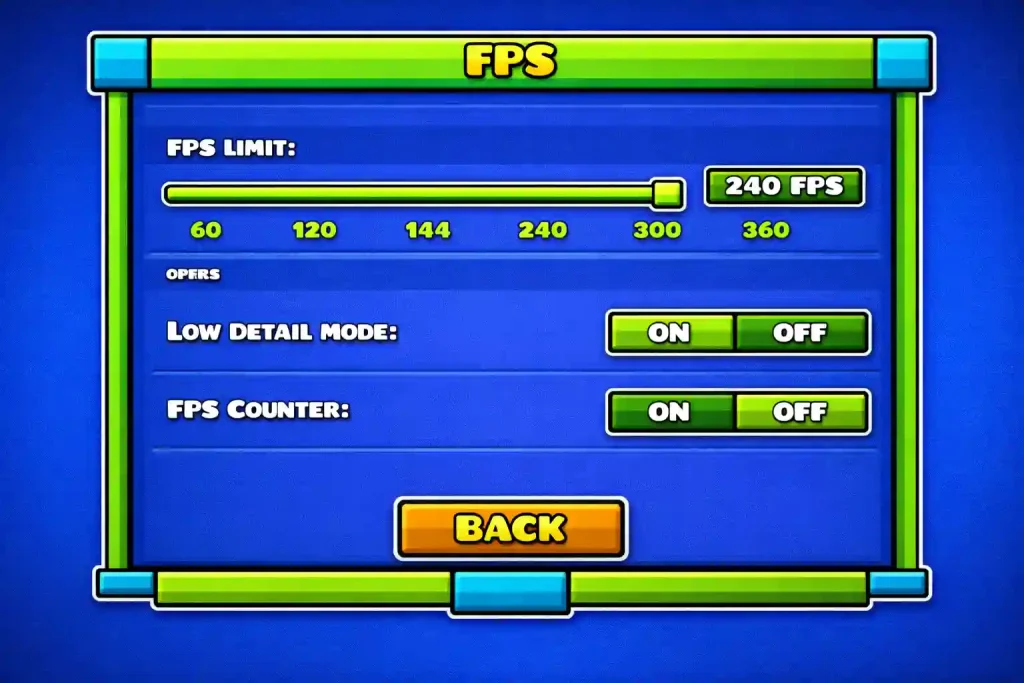
FPS is very important in a fast reaction game like Geometry Dash. When FPS stays steady, movement looks smooth and your jumps feel easier to control.
Low FPS creates choppy movement that makes timing much harder. Many players think their skill is the problem, but in many cases, low FPS is the real cause.
Increasing FPS usually means reducing extra work on your device. Turning off unnecessary visual features allows your system to focus more on movement instead of extra visuals.
Using fullscreen mode on PC often improves FPS because the computer gives full attention to the game. Window mode can sometimes split attention between the game and other tasks.
Another useful method is updating graphics drivers on PC. Drivers are small programs that help your system work properly with graphics hardware. Old drivers can slow things down and cause performance problems.
If you are learning harder levels, stable FPS matters more than visual beauty. Many advanced players prefer simpler visuals because they reduce distractions and make timing easier.
If you are practicing difficult stages, you may also benefit from reading the Difficulty Levels Guide for Geometry Dash, which explains how game play speed changes across different levels.
Common Mistakes That Cause Lag in Geometry Dash
Many players accidentally create lag without realizing it. These mistakes are very common, especially among beginners who are still learning how settings affect performance.
One common mistake is using maximum graphics on weak devices. High graphics may look attractive, but they require more power. If the device cannot handle the extra work, lag starts to appear during gameplay.
A second problem is keeping too many apps open in the background. Even small apps use memory while running. When available memory becomes limited, the game may start to slow down or stutter.
Some players also ignore device temperature while playing. When devices become too hot, they slow down automatically to protect their hardware. This sudden slowdown often leads to lag during important moments.
Another issue is ignoring available storage space. When storage becomes nearly full, the device struggles to save temporary files needed by the game. This can cause sudden slowdowns without warning.
Many players also forget to restart their device regularly. Restarting clears temporary memory and stops hidden processes that may be slowing down the game in the background.
If you are still learning gameplay basics, reading the Beginner Guide for Geometry Dash can also help. Understanding how timing works makes it easier to notice when lag is causing mistakes.
Advanced Geometry Dash Settings for Competitive Players
Competitive players usually want more control over how the game feels during fast gameplay. They focus on stable timing and quick reactions, especially in difficult levels where every jump matters.
These players often choose balanced settings instead of pushing everything to the maximum level. Moderate settings reduce visual distractions and make it easier to react at the right moment.
Many competitive players test several settings before choosing their final setup. They play the same level multiple times with different options to see which setup feels the smoothest and most reliable.
Consistency matters more than appearance when playing at a high level. A stable setup helps players build muscle memory, which means your fingers learn the correct timing through repeated practice.
Players who upload custom levels or compete in very hard stages depend heavily on stable performance. Even a small delay can change the result of a difficult level.
If you create or upload levels, reading the Upload Level Guide for Geometry Dash can also help. It explains how levels behave under different conditions and why stable settings matter.
Best Control Settings for Geometry Dash APK
Control settings also change how the game feels while playing. Even if graphics are perfect, uncomfortable controls can ruin your timing and make jumps harder to manage.
Some players use keyboard controls on PC, while others prefer mouse clicks. Choosing the right control method mostly depends on what feels natural and easy for your hands.
Comfort plays a big role in gameplay. When your fingers feel relaxed, your reactions become faster and more accurate. If controls feel awkward, mistakes start to happen more often.
Mobile players usually tap the screen to control jumps. Holding the device steadily helps keep your timing consistent and reduces accidental mistakes.
Many experienced players test different control methods before choosing their favorite one. Once they find a comfortable method, they continue using it to build strong timing habits.
You can also improve your timing by reviewing the Controls Guide for Geometry Dash, where different input methods are explained in simple detail.
Recommended Geometry Dash Settings Based on Device Type
Not every device works the same way when running Geometry Dash. A strong PC can handle heavy graphics more easily than a basic phone, but even powerful devices work better with balanced settings.
PC users often get better results when using fullscreen mode and keeping FPS stable. This allows the computer to focus fully on the game and reduces small delays.
Mobile users usually see smoother gameplay by reducing extra effects and closing background apps. These small steps prevent memory from filling up and keep the game running smoothly.
Tablet users work best with balanced graphics settings. Larger screens require more power to display visuals, so lowering some effects helps keep performance steady.
Understanding your device strength makes it easier to choose the right settings. Instead of copying someone else’s setup, adjust settings based on what your own device can handle.
Extra Tips to Make Geometry Dash Run Smoothly
Small daily habits can make the game feel much smoother than most players expect. These simple actions take very little effort but can create noticeable improvements during gameplay.
Keeping your device clean from unnecessary files can make a big difference. Temporary files slowly build up over time and take space in your device storage, which may slow things down.
Battery level also plays an important role while gaming. Playing when your battery is very low can reduce device speed, which may cause lag during important moments.
Using official game versions is another smart habit. Unofficial or modified files may look attractive, but they often create unexpected performance problems.
Many players also practice on simpler levels before moving to harder ones. This builds confidence and improves timing, making it easier to handle faster levels later.
If you are exploring new levels, checking the Levels Guide for Geometry Dash APK can also help. It explains how different level types behave and what to expect from each one.
Frequently Asked Questions (FAQ)
Why is my Geometry Dash lagging even on a good device?
Lag can still happen if settings are too high or background apps are running. Lowering effects and closing extra apps usually helps improve performance.
What is the best FPS setting for Geometry Dash?
The best FPS setting is one that stays stable during gameplay. Very high FPS is not always better if your device cannot maintain it.
Does fullscreen improve performance?
Yes, fullscreen mode usually improves performance on PC because the system focuses fully on the game.
Why does my game stutter during hard levels?
Hard levels contain many objects and effects. When too many items appear at once, the device may struggle to process them smoothly.
How do I fix input delay in Geometry Dash?
Input delay often happens due to VSync or heavy graphics settings. Turning off VSync or reducing visual effects may help.
Can low storage space cause lag?
Yes, low storage space reduces system efficiency. Keeping enough free space helps maintain smooth performance.
Do updates improve performance?
Game updates often include fixes and improvements. Keeping the game updated helps reduce bugs and lag.
Is Geometry Dash harder with low FPS?
Yes, low FPS makes timing difficult. Smooth FPS improves reaction accuracy and overall gameplay.
Should I use high graphics settings?
High graphics settings are useful only if your device supports them smoothly. Balanced settings usually work better for performance.
Can restarting my device fix lag?
Yes, restarting clears memory and removes hidden processes that slow down gameplay.
Conclusion
Geometry Dash is a fast reaction game where timing matters more than appearance. Many players struggle with lag, slow response, or choppy movement, but the real cause is often incorrect settings rather than weak devices.
By adjusting graphics, controlling FPS, and reducing unnecessary effects, the game starts to feel faster and easier to control. Even low-end devices can perform much better when settings are balanced carefully.
Players using Geometry Dash APK, Geometry Dash for PC, or Geometry Dash for iOS can gain real benefits from small setting changes. Smooth gameplay makes levels feel fair and helps players focus on skill instead of technical problems.
If you spend time testing different settings and finding what suits your device, you will start to notice clear improvements. Levels that once felt difficult begin to feel more manageable, and your confidence grows with every successful run.