
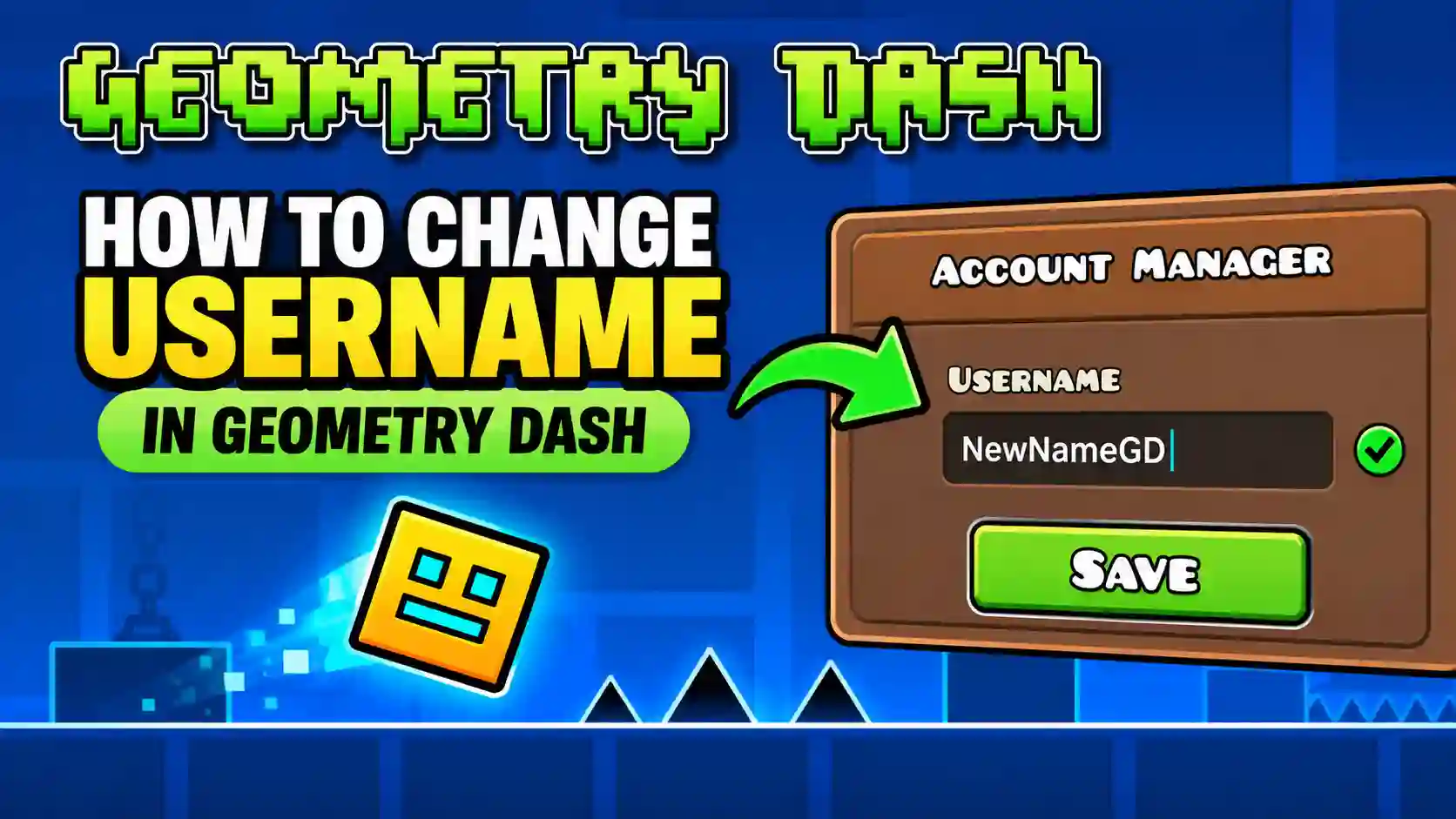
How to Change Username in Geometry Dash (2026 Guide)
You can change your username in Geometry Dash through the Account Manager. The option is not available directly on your profile, which is why many players have trouble finding it. To change your name, open Geometry Dash APK → Settings → Account → More → Manage Account, then log in and select the username-change option. Your existing account stays the same, so changing the username is different from creating a new account. In this guide, you’ll learn how to change your Geometry Dash username on PC, Android, and iPhone/iPad, what happens to your progress, and what to do if the new username doesn’t appear after the change.
Can You Change Your Geometry Dash Username?
Yes, you can change your username in Geometry Dash if you have a registered account. The change is made through the Account Manager, not from the regular profile screen inside the game. You don’t need to create a new account just to use a different name. Your existing account remains connected to your online profile and saved account data after the username is changed. If you’re ready to change it, you can do it in a few steps: open Settings → Account → More → Manage Account, sign in, and use the username-change option.
How to Change Your Username in Geometry Dash
Changing your Geometry Dash username takes only a few steps. You need to open the Account Manager from the game, sign in, and change the name associated with your existing account.
Step 1: Open Geometry Dash Settings
Launch Geometry Dash and open the Settings menu from the main screen.
Step 2: Open Your Account
Select Account to access your account options. Make sure you’re signed into the account whose username you want to change.
Step 3: Tap “More”
Inside the Account menu, select More. This opens additional account-management options.
Step 4: Select “Manage Account”
Tap Manage Account to open the Geometry Dash Account Manager. The username change is handled through this account-management page rather than the normal in-game profile screen.
Step 5: Sign In
Enter your Geometry Dash account username and password when prompted. If you cannot remember your password, use the available password-recovery option.
Step 6: Change Your Username
After signing in, choose the option to change your username. Enter the new name you want to use and submit the change.
Before confirming, check the spelling carefully and make sure the username is available. A username that is already registered to another account cannot be used.
Step 7: Refresh Your Login
Return to Geometry Dash after changing the username. If the old name is still displayed, go to Account → More → Refresh Login to update the account information stored in the game.
Things to Know Before Changing Your Geometry Dash Username
Before confirming a new username, there are a few things worth checking. This can help you avoid choosing a name that you cannot use or having to change it again later.
If your main concern is losing stars, levels, or other account data, the username change itself should not be confused with switching to a different Geometry Dash account.
Does Changing Your Geometry Dash APK Username Delete Your Progress?
No, changing the username on your existing Geometry Dash APK account is not the same as creating a new account. You are updating the name connected to the account you already use. Your username change should not, by itself, remove the progress stored on that account. Your existing online profile remains associated with the same account after the name is changed.
If you have important progress saved locally, it is still a good idea to use Save before making account changes. This gives you an up-to-date cloud backup that you can load again if you ever need to restore your data. The key difference is simple: changing your username keeps your account, while creating a new account gives you a separate profile and separate progress.
Tips for Choosing a Good Geometry Dash Username
If you’re changing your username in Geometry Dash APK, take a moment to choose a name you’ll be happy to use for a long time. A good Geometry Dash username should be easy to remember and simple enough for other players to recognize.
Most importantly, make sure the username is available before you submit the Geometry Dash username change. If the name is already registered to another account, you’ll need to choose a different one.
Frequently Asked Questions
Can you change your username in Geometry Dash?
Yes. You can change your Geometry Dash username through the Account Manager. Open Settings → Account → More → Manage Account, then sign in and choose the username-change option.
How do I change my username in Geometry Dash?
Open Geometry Dash and go to Settings → Account → More → Manage Account. Sign in to your account, enter your new username, and submit the change.
Can I change my Geometry Dash username on mobile?
Yes. The same Account Manager method works on Android and iPhone/iPad. The username change is handled through the account-management page rather than a separate mobile-only setting.
Can I change my username in Geometry Dash on PC?
Yes. PC players can access the Account Manager through the same in-game account menu and change the username connected to their existing account.
Will changing my Geometry Dash username delete my progress?
Changing the username on your existing account does not mean creating a new account. Your account remains the same. If you have important local progress, save your data before making account changes.
Why can’t I change my username in Geometry Dash?
Check that you’re using the Account Manager, that you can sign in to your account, and that your new username is available. If the game still shows old account information after the change, try Account → More → Refresh Login.
What if my Geometry Dash username is already taken?
You cannot use a username that is already registered to another account. Try a different spelling or choose another unique username.
Can I claim an inactive Geometry Dash username?
No. An inactive username is not automatically released for other players to claim.
What should I do if my new username is not showing?
Return to Geometry Dash and use Account → More → Refresh Login. This can update the account information displayed by the game after an account change.
Do I need my Geometry Dash password to change my username?
You need to sign in to your account through the Account Manager. If you have forgotten your password, use the available password-recovery option to regain access to the account.
Final Words
Changing your Geometry Dash username is easy once you know where to find the Account Manager. The main thing to remember is that the username change is handled through Manage Account, not directly from your in-game profile. Before confirming your new name, check the spelling and make sure it’s available. If the updated username doesn’t appear afterward, use Refresh Login from the Account menu. That’s all you need to change your username while keeping your existing Geometry Dash account.
Note: Before making account changes, use the Save option in Geometry Dash to back up your latest progress. This gives you a current cloud save in case you need to restore your data later.