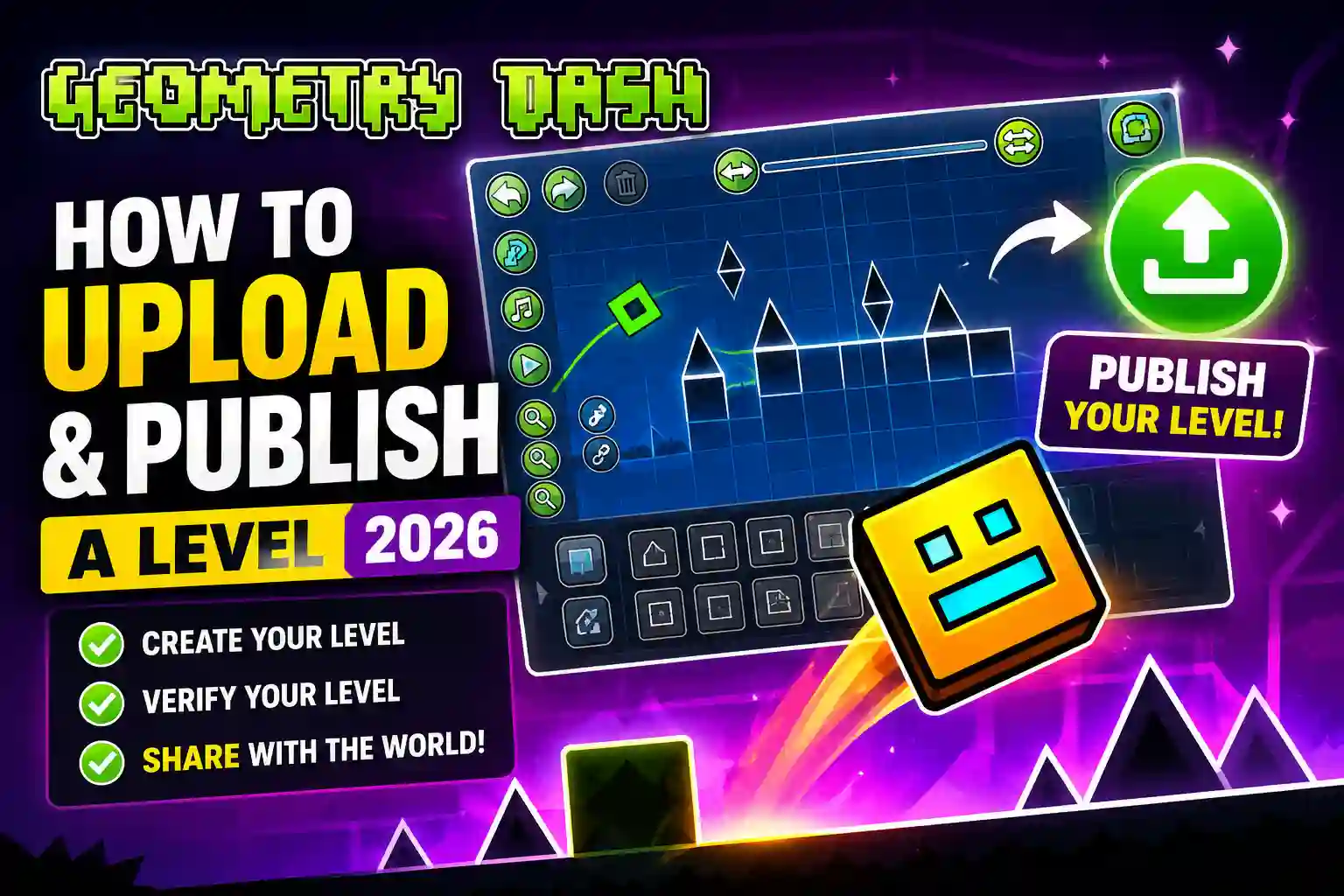
How to Upload and Publish a Level in Geometry Dash 2026
Creating a level in Geometry Dash takes time, creativity, and patience, so it can be frustrating when you finish building your level but have no idea how to upload it. Many players spend hours designing obstacles, adding decorations, and testing gameplay, only to face verification errors or fail to find the publish option. If you are experiencing the same problem, you are not alone because almost every new creator goes through this learning process.
The good news is that publishing a level is much easier once you understand how the system works. Geometry Dash has a few important requirements that every creator must complete before a level can be shared with other players. Missing even one of these requirements can prevent your level from being uploaded successfully. This guide explains how to upload and publish a level in Geometry Dash from start to finish. You will learn how to prepare your level, verify it correctly, upload it without errors, and share it with the community. Along the way, you will also discover common mistakes, practical tips, and solutions to the problems that stop many players from publishing their first level.
What You Need Before Uploading and Publishing a Level in Geometry Dash
Before learning how to upload and publish a level in Geometry Dash APK, it is important to make sure your level meets the game’s publishing requirements. Many upload errors happen because creators skip one of these simple steps, which is why checking everything beforehand will save you time and frustration. Geometry Dash only allows levels that meet specific conditions to be uploaded. Once these requirements are complete, the publishing process becomes much smoother, and your level will be ready for other players to enjoy.
Create a Geometry Dash Account Before You Upload and Publish a Level in Geometry Dash
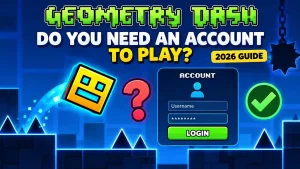
The first requirement is having a registered Geometry Dash account. Although you can build and edit levels without signing in, you cannot upload them to the online servers until your account is connected. If you have never created an account before, open the Account menu from the main screen and complete the registration process. After confirming your account details, log in to the game before attempting to upload your level. This simple step allows the game servers to recognize you as the creator and store your published levels under your profile. Using the same account on all of your devices is also a good idea because it keeps your progress synchronized and makes it easier to manage your published creations later.
Finish Your Level Before You Upload and Publish a Level in Geometry Dash
Many beginners become excited after creating the first part of a level and immediately try to publish it. However, unfinished levels usually provide a poor experience for players and often require additional work before they are worth sharing. Take enough time to complete your level from beginning to end. Make sure every section connects naturally, every jump feels fair, and the gameplay remains consistent throughout the entire level. While building, check for missing objects, invisible spikes, broken portals, and decoration errors because these small issues can affect the overall quality of your creation. A finished level not only looks more professional but also increases the chances that players will enjoy, like, and recommend your work.
Verify Your Level Before You Upload and Publish a Level in Geometry Dash
Verification is one of the most important parts of how to upload and publish a level in Geometry Dash. Without verification, the game will not allow your level to be uploaded to the online servers. To verify your level, you must complete it from the starting position to the finish without using cheats, hacks, or practice mode. This rule exists to make sure every published level is actually possible to complete. Many new creators accidentally place impossible jumps or obstacles while building. Playing through the entire level yourself helps you discover these problems before other players do. If you cannot complete your own level, it usually means the gameplay needs additional adjustments before it is ready for publishing. Verification also builds trust within the Geometry Dash community because players know every uploaded level has been completed by its creator.
Check Your Internet Connection Before You Upload and Publish a Level in Geometry Dash
Even a perfectly verified level cannot be uploaded if your internet connection is unstable. Since published levels are stored on Geometry Dash servers, the game needs a reliable connection during the upload process. Before publishing your level, make sure your internet connection is working properly. If uploads continue to fail, restarting your router, switching between Wi-Fi and mobile data, or trying again a few minutes later often solves the problem. Sometimes the issue is not on your side because Geometry Dash servers occasionally experience maintenance or temporary overload. Waiting a short time before trying again is often the easiest solution.
How to Create a Level in Geometry Dash Before You Upload and Publish It
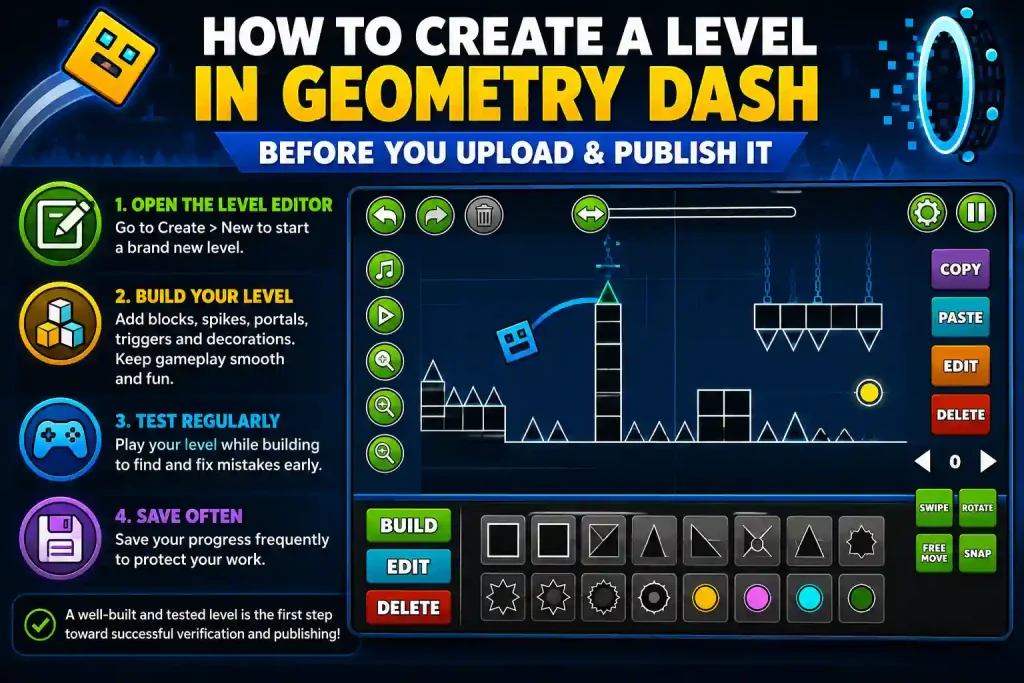
Before you can learn how to upload and publish a level in Geometry Dash, you obviously need a level worth sharing. While experienced creators focus on advanced mechanics and detailed decoration, beginners should concentrate on building a fun, balanced level that players can actually enjoy. The level editor may seem overwhelming at first because it includes hundreds of objects, triggers, portals, and gameplay tools. Fortunately, you do not need to master every feature before creating your first successful level. Starting with the basics allows you to understand how the editor works while gradually improving your design skills.
Open the Level Editor
Begin by launching Geometry Dash and selecting the Create option from the main menu. Here you will find all of your saved levels along with the option to create a brand-new project. Choose New to start from scratch or duplicate one of your existing levels if you want to build on a previous design. Giving your project a clear name from the beginning also makes it easier to organize multiple creations later. Once your new project opens, you will enter the Level Editor where you can place blocks, spikes, portals, decorations, triggers, and every other gameplay element available in Geometry Dash.
Build and Save Your Level
As you begin designing your level, focus on creating gameplay that feels smooth and enjoyable rather than making it unnecessarily difficult. Every jump should feel intentional, obstacles should be visible, and transitions between sections should remain consistent. Test your level regularly while building instead of waiting until the very end. Frequent testing helps you identify mistakes early, making them much easier to fix before the level becomes too complex. Saving your progress often is equally important because it protects your work from unexpected crashes or accidental changes. Developing this habit will save you countless hours as your projects become larger and more detailed. A well-tested and carefully saved level creates a strong foundation for the next stage, which is verification. Once you can complete your own creation consistently, you will be ready to move on to the publishing process without facing unnecessary upload errors.
How to Verify a Level Before You Upload and Publish a Level in Geometry Dash
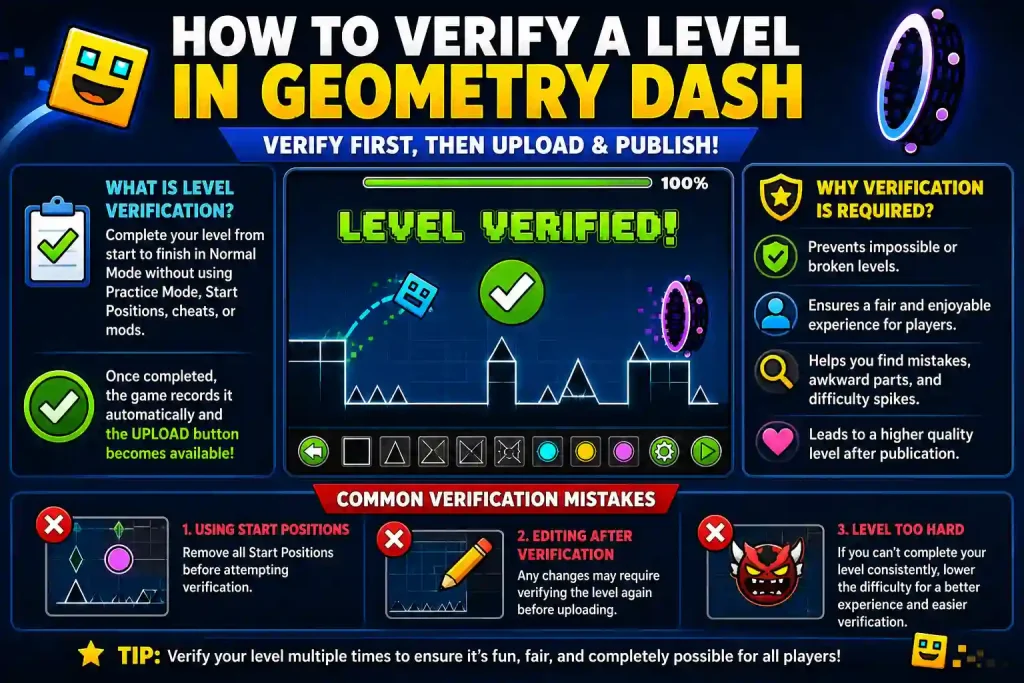
Learning how to upload and publish a level in Geometry Dash also means understanding why verification is required. Many new creators believe verification is simply another upload step, but it actually protects the quality of the entire Geometry Dash community. Before any level becomes available online, the game requires proof that the creator can complete it without assistance. This system prevents impossible levels from being uploaded and ensures that every published level is technically beatable.
What Is Level Verification?
Level verification is the process of completing your own level from the official starting position all the way to the finish. During this run, you cannot use Practice Mode, Start Positions, cheats, or external modifications because the game only accepts legitimate completions. Once you successfully complete the level under normal conditions, Geometry Dash records the verification automatically. After that, the Upload button becomes available, allowing you to continue with the publishing process. This requirement may seem challenging at first, but it encourages creators to build levels that are fair, enjoyable, and possible for other players to complete.
Why Verification Is Required Before You Upload and Publish a Level in Geometry Dash
Verification protects both creators and players by maintaining the quality of online content. Without this system, anyone could upload impossible or broken levels that waste other players’ time and create frustration. Completing your own level also helps you evaluate the gameplay from a player’s perspective. During the verification run, you may notice awkward jumps, unfair timings, hidden obstacles, or inconsistent difficulty spikes that were easy to overlook while building. Most experienced Geometry Dash creators treat verification as a final quality check rather than a simple requirement. Making small improvements during this stage often results in a much better level after publication.
Common Verification Mistakes
One of the most common mistakes is forgetting to remove Start Positions before attempting verification. Since these checkpoints are designed for testing, they cannot be used during the official verification run. Another frequent problem is modifying the level after completing verification. Even a small gameplay change may require the level to be verified again before it can be uploaded. Finally, some creators try to make their first level much harder than their current skill level. If you cannot complete your own creation consistently, consider reducing the difficulty slightly. A balanced level is usually more enjoyable for players and significantly easier to verify successfully.
How to Upload and Publish a Level in Geometry Dash
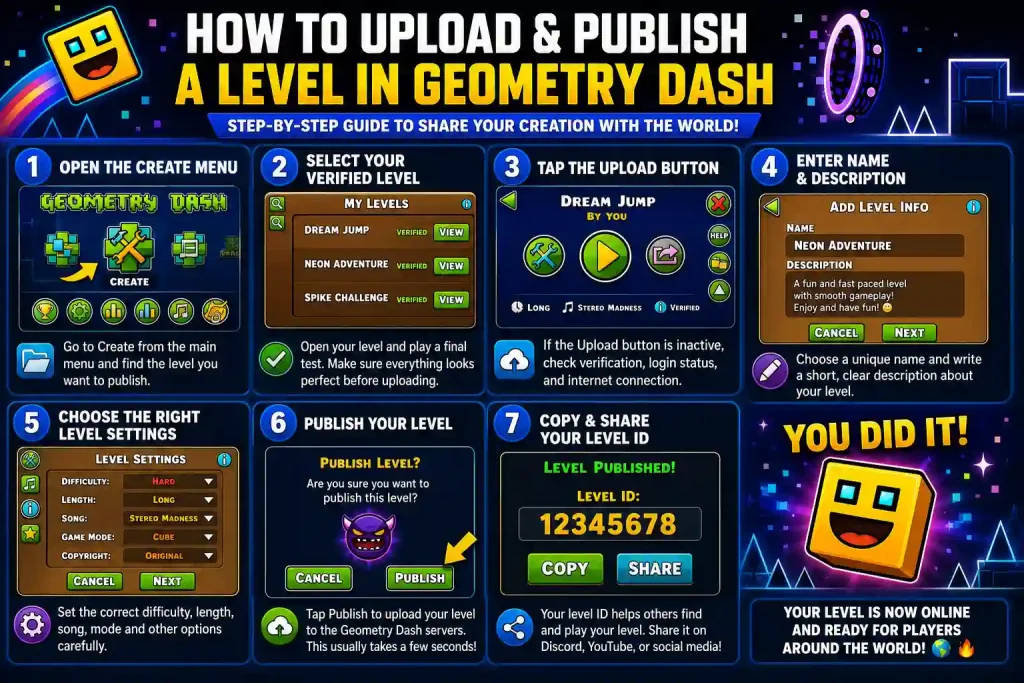
Now that your level is complete and verified, you are ready for the most important part of the process. Understanding how to upload and publish a level in Geometry Dash is much easier when you follow each step in the correct order because missing a small setting can prevent your level from appearing online. Although the upload process only takes a few minutes, it is worth reviewing every option carefully before publishing. Choosing the right settings and adding accurate information will make your level easier to find and create a better experience for other players.
Step 1: Open the Create Menu to Upload and Publish a Level in Geometry Dash
Launch Geometry Dash and select the Create button from the main menu. This section contains every level you have created, whether it is still being edited or already finished. Scroll through your saved levels until you find the one you want to publish. Before opening it, make sure you have selected the latest version because uploading an older copy by mistake is more common than many new creators realize. Once you have confirmed the correct level, open it to continue with the publishing process.
Step 2: Select Your Verified Level
After opening your project, check that your most recent edits have been saved successfully. It is also a good idea to play through the level one final time because this last review often reveals small decoration issues or gameplay mistakes that were previously overlooked. If you notice anything that affects the player’s experience, fix it before continuing. Publishing a polished level creates a much better first impression than uploading something that still needs obvious corrections. When everything looks correct, you can move to the upload menu.
Step 3: Tap the Upload Button to Upload and Publish a Level in Geometry Dash
Inside the level menu, locate the Upload button. If the button is unavailable or appears inactive, the game is usually telling you that one of the publishing requirements has not been completed. In most cases, this happens because the level has not been verified, your account is not logged in, or the game cannot connect to the online servers. Checking these requirements first is much faster than repeatedly trying to upload the same level without success. Once the Upload button becomes available, open it to access the publishing settings.
Step 4: Enter the Level Name and Description
The first thing players notice is your level name, so choose one that is unique, memorable, and easy to read. Avoid using random symbols, excessive capital letters, or misleading titles because they can make your level appear unprofessional. Next, write a short description that explains what players can expect. You might mention the difficulty, gameplay style, inspiration, or any special mechanics included in the level. Keeping the description clear and informative helps players decide whether your level matches their interests. A thoughtful title and description also make your creation easier to recognize when players search for it later.
Step 5: Choose the Right Level Settings Before You Upload and Publish a Level in Geometry Dash
Before you finish publishing, review every available setting carefully. Although these options only take a few moments to configure, they determine how your level appears to other players. Make sure the level information is accurate and matches the actual gameplay. Selecting the correct settings helps players understand what they are about to play, which often leads to better ratings and more positive feedback. Taking an extra minute to review everything now is much easier than correcting mistakes after your level has already been shared with the community.
Step 6: Publish Your Level
After confirming all of the information, press the Publish button to upload your level to the Geometry Dash servers. The upload usually finishes within a few seconds, although the exact time depends on your internet connection and the current server status. Once the upload is complete, your level becomes available online and can be accessed by other players. Seeing your own creation published for the first time is a rewarding moment because it represents the completion of all the effort you invested while designing, testing, and verifying the level. If the upload does not finish successfully, avoid pressing the button repeatedly. Instead, wait a moment, confirm your connection, and try again after checking for any server issues.
Step 7: Copy and Share Your Level ID
After your level has been published successfully, Geometry Dash assigns it a unique Level ID. Think of this number as your level’s permanent identification because players can use it to find your creation instantly. Copy the Level ID and save it somewhere safe. You can share this ID with friends, post it on Discord communities, include it in YouTube videos, or publish it on social media to help more players discover your work. Keeping your Level ID available also makes it easier to answer comments from players who ask where they can find your latest creation.
Public vs Unlisted Levels in Geometry Dash
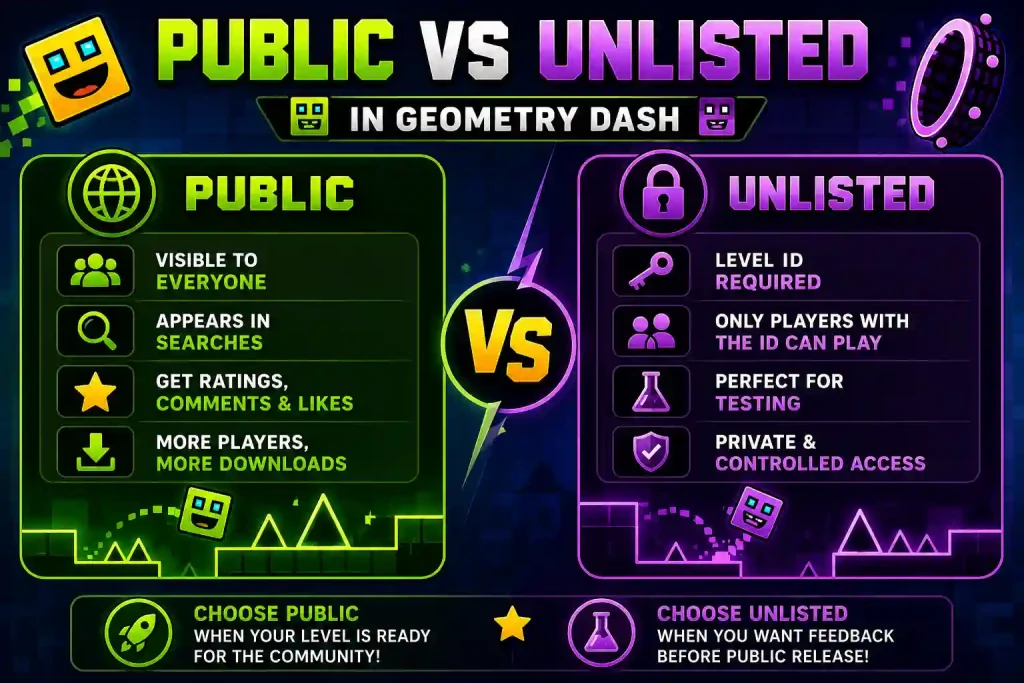
After learning how to upload and publish a level in Geometry Dash, you should also understand the difference between Public and Unlisted levels. Choosing the correct option affects who can find your level and how easily it can gain new players. Many beginners publish their first level without understanding these visibility settings, which sometimes leads to confusion when friends cannot locate the level through normal searches.
What Is a Public Level?
A Public level is visible to the entire Geometry Dash community. Other players can discover it through searches, browse lists, recommendations, and shared Level IDs. If your goal is to receive ratings, comments, downloads, and community feedback, publishing your level as Public is usually the best option. The more people who play your level, the more opportunities you have to improve your skills based on real player experiences. Public levels are also the only practical choice for creators who hope their work will eventually receive recognition from the Geometry Dash community.
What Is an Unlisted Level?
An Unlisted level remains online, but it does not appear in normal public searches. Instead, players need the Level ID to access it directly. This option works well when you want friends or beta testers to play your level before releasing it to everyone. Collecting feedback during this stage allows you to improve gameplay, fix bugs, and adjust the difficulty before making the level widely available. Many experienced creators use Unlisted uploads as part of their regular testing process because early feedback often leads to a much stronger final release.
Which Option Should You Choose?
The best choice depends on your purpose. If your level is finished and you want the community to discover it, selecting Public makes the most sense. However, if you are still gathering opinions or testing gameplay with trusted players, choosing Unlisted gives you greater control over who can access the level. After making improvements, you can confidently release your polished version to a wider audience. Understanding these options helps you avoid unnecessary confusion and gives you more control over your publishing strategy.
How to Share Your Published Level in Geometry Dash
Publishing your level is only the beginning because players need to know your creation exists before they can play it. Learning how to promote your work effectively can significantly increase downloads, comments, and positive ratings over time. Sharing your level with the right audience also helps you receive valuable feedback that can improve your future creations.
Share Your Level Using the Level ID
The easiest way to share your level is by providing its unique Level ID. Anyone who enters this number in Geometry Dash can access your level directly without searching through hundreds of similar creations. Including the Level ID in every post, video, or message ensures that interested players can find your level within seconds.
Promote Your Level in the Geometry Dash Community
Once you are confident in your level, begin sharing it with the wider Geometry Dash community. Posting your Level ID in active Discord servers, Reddit discussions, YouTube videos, or creator communities can attract players who enjoy discovering new custom levels. Instead of simply asking people to play your level, explain what makes it unique. Whether your design focuses on fast gameplay, creative decoration, or interesting mechanics, highlighting those strengths gives players a reason to try your creation. Building a reputation as a quality creator takes time, but consistently publishing polished levels and engaging positively with the community can gradually grow your audience.
Share Your Level With Friends
Friends are often your first audience, making them the perfect people to test your level honestly. Ask them to complete the level and share their opinions about the gameplay, decoration, difficulty, and overall experience. Constructive feedback from people you trust often reveals small improvements that make a noticeable difference before your level reaches a larger audience.
Why Your Geometry Dash Level Won’t Upload
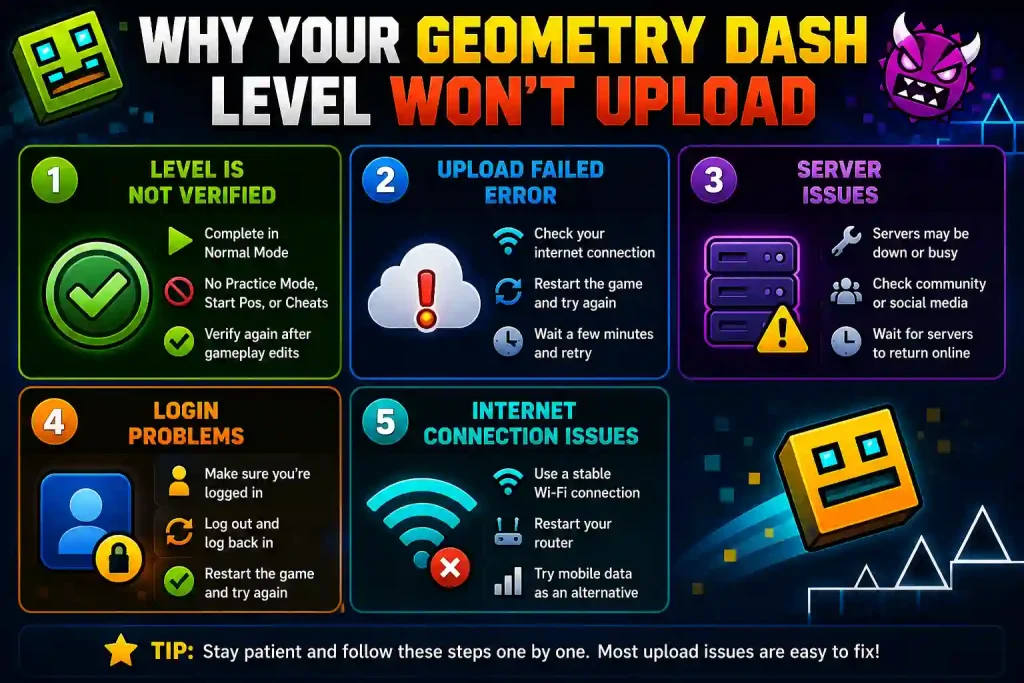
Even after learning how to upload and publish a level in Geometry Dash, you may occasionally run into upload problems. While this can be frustrating, most publishing errors are caused by a small issue that can be fixed within a few minutes. Understanding the most common reasons behind these errors will help you upload your level successfully without wasting time trying random solutions. Instead of repeatedly pressing the Upload button, identify the actual cause of the problem first. A systematic approach usually solves the issue much faster and prevents unnecessary frustration.
Level Is Not Verified
The most common reason a level fails to upload is that it has not been verified. Geometry Dash requires every creator to complete their own level in Normal Mode before it can be published. This rule prevents impossible levels from being uploaded and keeps the online library fair for everyone. If your level has not been verified yet, return to the editor and complete the level from the official starting position without using Practice Mode, Start Positions, cheats, or hacks. Once the verification is recorded successfully, the upload option should become available. If you recently changed the gameplay after verification, remember that even a small gameplay edit may require you to verify the level again before publishing.
Server Issues
Geometry Dash depends on online servers to publish every custom level. When those servers are undergoing maintenance or experiencing heavy traffic, uploads may temporarily stop working even if everything on your device is configured correctly. If other online features such as searching for levels or viewing player profiles are also unavailable, the problem is most likely on the server side rather than your own device. In that situation, waiting until the servers return to normal is usually the only available solution. Checking community forums or official social media channels can also help confirm whether other players are experiencing the same issue.
Login Problems
Publishing a level requires an active Geometry Dash account. If your account has been logged out automatically or your login session has expired, the game may refuse to upload your level until you sign in again. Open the Account settings and confirm that your profile is still connected. Logging out and signing back in often refreshes the connection and resolves unexpected authentication problems. After reconnecting your account, restart the game and try publishing your level again.
Internet Connection Issues
A weak or unstable internet connection can interrupt the upload process before your level reaches the Geometry Dash servers. Even if normal browsing works, occasional connection drops may still prevent successful uploads. If possible, switch to a more reliable Wi-Fi network or restart your router before attempting another upload. Mobile data may also work as a temporary alternative if your primary connection is unstable. Testing another online feature inside Geometry Dash can help determine whether the problem is caused by your internet connection or something else.
Upload Failed Error While Uploading and Publishing a Level in Geometry Dash
Sometimes the game displays an “Upload Failed” message even when your level has already been verified. In most cases, this error is related to temporary server issues or an unstable internet connection rather than a problem with your level. Before trying again, make sure your internet connection is stable and restart the game if necessary. If the error continues, wait a few minutes because Geometry Dash servers occasionally become busy, especially after major game updates or during periods of high player activity. Patience is often the simplest solution because server-related errors usually disappear without requiring any changes to your level.
How to Update or Edit a Published Level in Geometry Dash
Publishing your level does not necessarily mean your work is finished. As you receive feedback from other players, you may discover new ideas, identify small bugs, or decide to improve the decoration and gameplay. Fortunately, Geometry Dash allows creators to continue improving their projects after publication. Understanding how updates work also helps you avoid accidentally losing progress or confusing players who are already enjoying your level.
Can You Edit a Published Level?
Yes, you can continue editing your published level whenever you want. Open the level in the editor and make the necessary changes, whether you want to adjust gameplay, improve decorations, fix bugs, or rebalance the difficulty. However, remember that major gameplay changes often require another successful verification before the updated version can be uploaded. This ensures that every published version remains fair and fully playable. Taking time to test every update carefully helps maintain the quality of your work and protects your reputation as a creator.
How to Upload a New Version
After finishing your edits, save the updated version and verify the level again if required. Once verification is complete, follow the same publishing process you used previously. Before uploading, double-check that you are editing the correct version of the level. Accidentally publishing an outdated copy can overwrite recent improvements and create unnecessary confusion. Keeping organized backups of important projects also makes future updates much easier to manage.
Tips to Get More Downloads and Likes After You Upload and Publish a Level in Geometry Dash
Learning how to upload and publish a level in Geometry Dash is only the first step toward becoming a successful creator. If you want your level to receive more downloads, positive ratings, and community recognition, you also need to focus on quality and player experience. Many excellent levels receive little attention simply because they are difficult to discover or lack the finishing touches that encourage players to recommend them to others.
Create a Fun and Fair Level
Players enjoy levels that feel challenging without becoming unfair. Every obstacle should be difficult for a reason rather than relying on invisible traps or unavoidable deaths. A balanced difficulty curve encourages players to keep trying instead of quitting after only a few attempts. The more enjoyable your gameplay feels, the more likely players are to leave positive ratings and recommend your level.
Use Good Music
Music has a significant impact on the overall experience because it controls the rhythm and atmosphere of your level. Choosing a soundtrack that matches the gameplay makes every jump and transition feel more satisfying. Instead of selecting a song simply because it is popular, choose one that complements your level’s speed, theme, and visual style. A well-matched soundtrack creates a much stronger impression than decoration alone.
Add Clear Decorations
Decoration should improve gameplay rather than distract from it. While impressive visual effects can make a level more attractive, players should always be able to identify important objects, portals, and hazards without confusion. Maintaining a clean visual style also improves readability, especially during fast gameplay where quick reactions are essential.
Test Your Level Before Publishing
Even after verification, playing your level several more times is worthwhile because repeated testing often reveals small timing problems or decoration issues that were previously overlooked. If possible, ask experienced players to test your level before promoting it widely. Different skill levels often reveal weaknesses that are difficult for the creator to notice alone.
Share Your Level on Social Media
Publishing your level does not automatically guarantee players will discover it. Sharing your Level ID on YouTube, Discord, Reddit, Facebook, or other Geometry Dash communities can introduce your work to a much larger audience. Instead of simply posting the Level ID, include screenshots or short gameplay videos that demonstrate what makes your level unique. Attractive previews often encourage far more players to give your creation a chance.
Common Mistakes to Avoid When You Upload and Publish a Level in Geometry Dash
Most upload problems are completely avoidable once you understand the publishing process. Paying attention to a few common mistakes can save you considerable time and improve the quality of your first published level.
Forgetting to Verify the Level
Many new creators attempt to upload their level immediately after finishing it without realizing verification is still required. Completing the verification run should always be your final step before publishing.
Using an Unclear Level Name
A confusing or meaningless title makes it difficult for players to remember your creation. Choosing a clear, memorable name improves both professionalism and discoverability.
Publishing an Unfinished Level
Although you can technically upload a simple level, releasing unfinished content often leaves a poor first impression. Spending extra time polishing your gameplay and decoration usually leads to much better community feedback.
Ignoring Player Feedback
Constructive criticism is one of the fastest ways to improve as a creator. Instead of becoming discouraged by suggestions, use player feedback to refine your future levels and continue developing your skills.
Frequently Asked Questions
Final Thoughts
Learning how to upload and publish a level in Geometry Dash is an important milestone for every creator because it allows your ideas to reach players around the world. Although the process may seem confusing at first, following each step carefully makes publishing much easier and helps you avoid the most common errors.
Remember that great creators rarely produce a perfect level on their first attempt. Every published project teaches valuable lessons about gameplay, decoration, balancing, and player expectations. Continue improving your skills, listen to community feedback, and refine your future creations because consistent practice is the key to building levels that players genuinely enjoy.