How to Reduce Lag in Geometry Dash (10 Easy Fixes That Work)
Geometry Dash is all about perfect timing, so even a small delay can ruin your run. If you are searching for how to reduce lag in Geometry Dash, you are probably dealing with frame drops, freezing, or delayed taps that make the game frustrating to play. In this guide, you’ll learn how to reduce lag in Geometry Dash using simple and proven methods that work on Android, iPhone, and Windows PC without changing your progress or buying a new device.
Why Does Geometry Dash Lag?
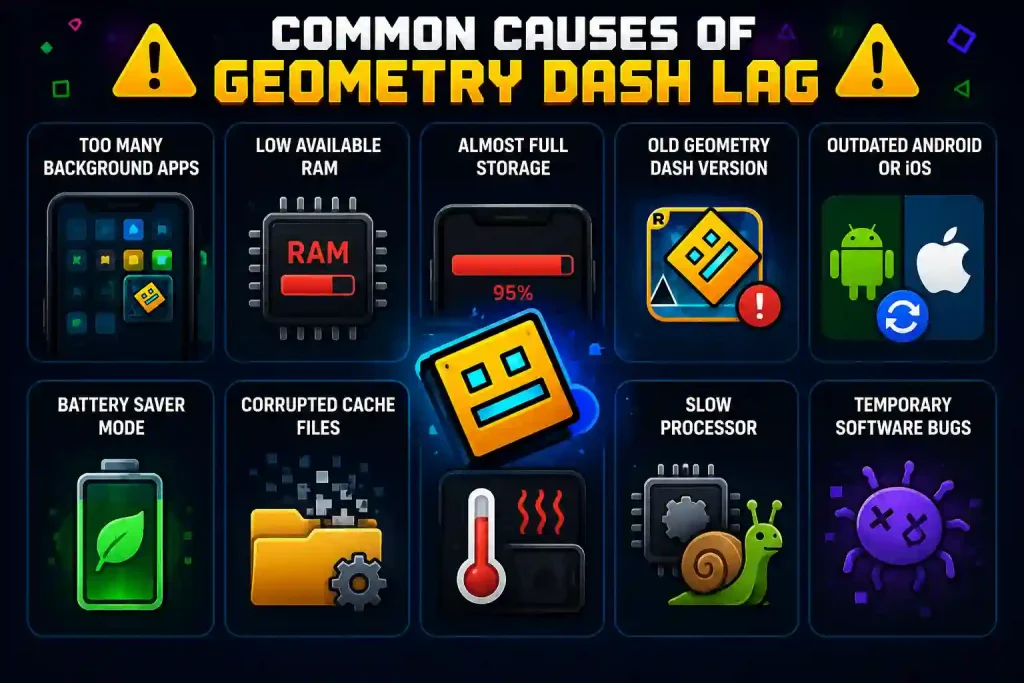
Before learning how to reduce lag in Geometry Dash, it helps to know what causes the problem. Although Geometry Dash is not a large game, it depends on stable performance because every jump must match the music perfectly. If your device cannot process everything smoothly, the game starts dropping frames, lags, or delaying your taps. The game itself does not cause most lag problems. Instead, they occur because your phone or computer is running low on resources or is using outdated software.
The most common causes include:
The good news is that most of these issues can be fixed in just a few minutes.
How to Reduce Lag in Geometry Dash Quickly
If you do not have time to change many settings, start with these quick fixes first. They solve performance problems for many players.
If the game still feels slow, continue with the detailed fixes below.
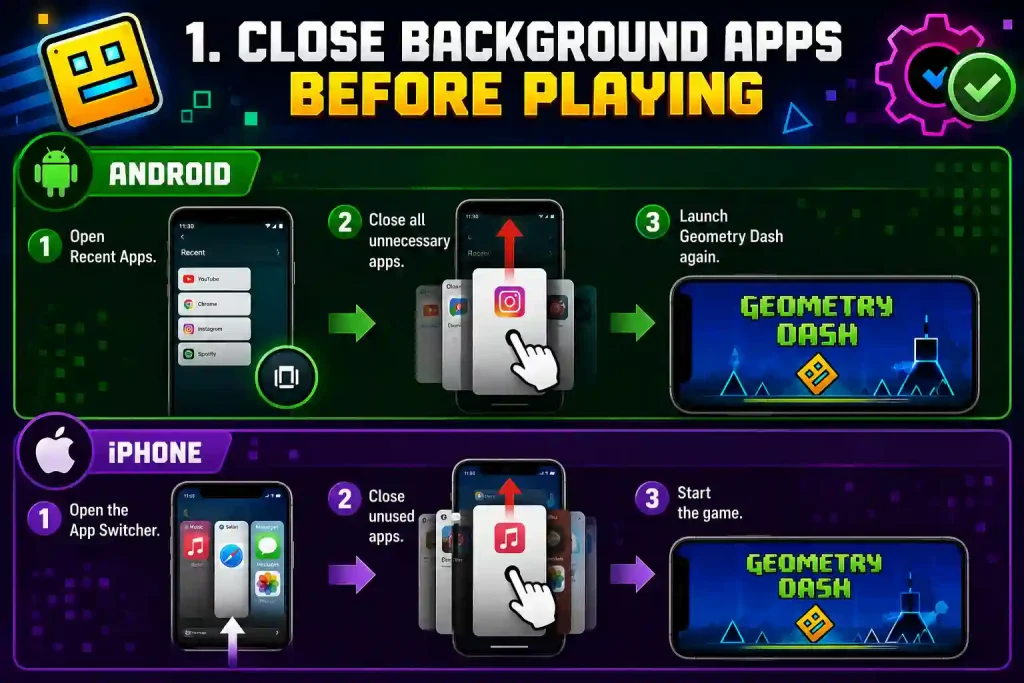
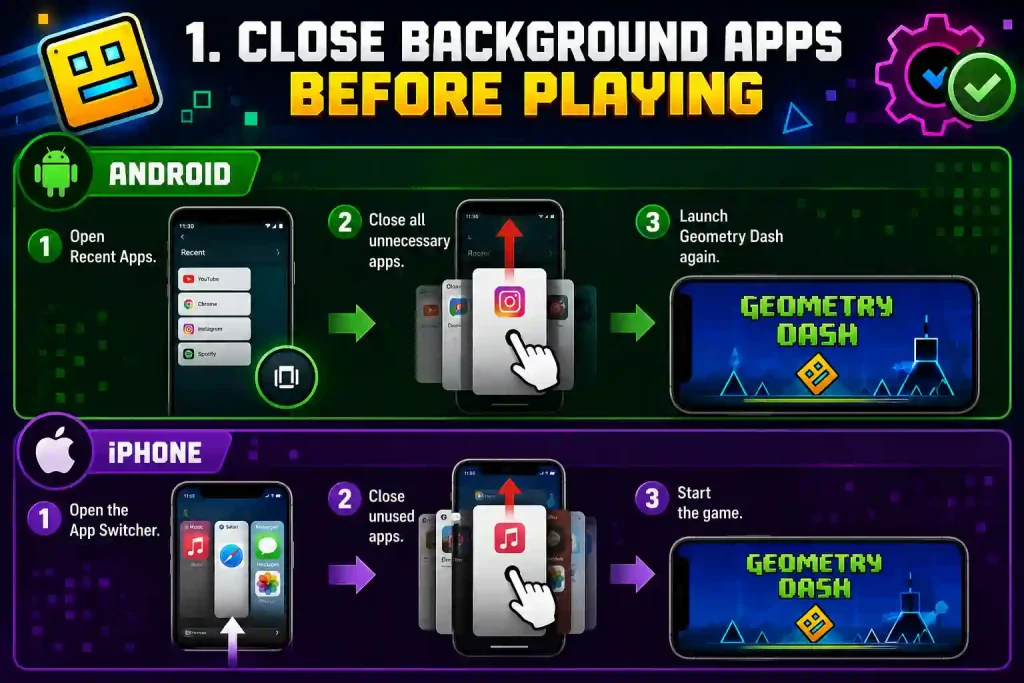
1. Close Background Apps Before Playing
One of the easiest ways to improve performance is by closing apps you are not using. Social media apps, web browsers, music players, and messaging apps continue using your RAM and processor even after you leave them. When Geometry Dash lacks sufficient available memory, it struggles to maintain a stable frame rate. This often causes stuttering, delayed controls, and sudden lag during difficult levels.
Android
- Open Recent Apps.
- Close all unnecessary apps.
- Launch Geometry Dash again.
iPhone
- Open the App Switcher.
- Close unused apps.
- Start the game.
If you have a budget phone with 3 GB or 4 GB of RAM, this simple step can noticeably improve gameplay.
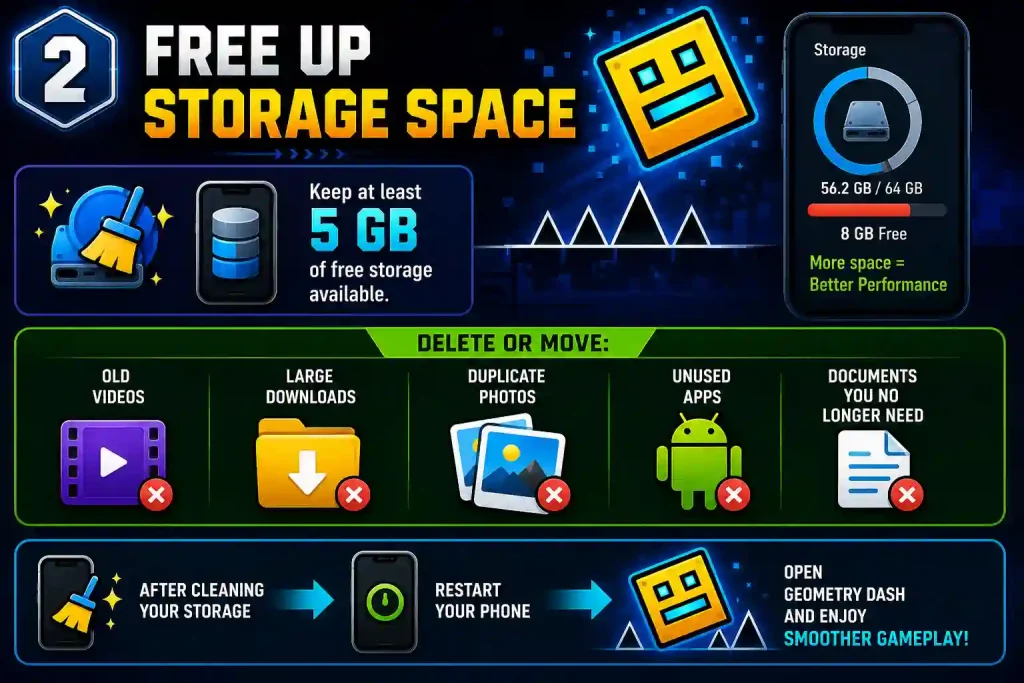
2. Free Up Storage Space
Many players ignore storage, but it has a direct effect on gaming performance. When your phone is almost full, Android and iOS have less space to create temporary files, making apps respond more slowly.
For the best experience, keep at least 5 GB of free storage available.
Delete or move:
After cleaning your storage, restart your phone before opening Geometry Dash again.
.
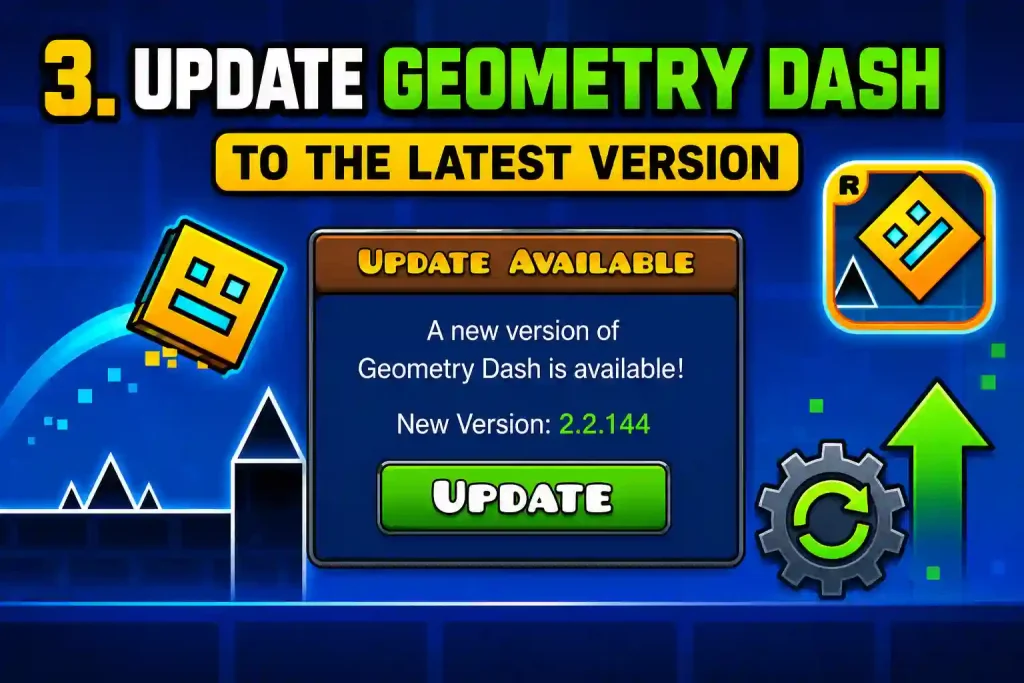
3. Update Geometry Dash to the Latest Version
If you want to know how to reduce lag in Geometry Dash, never ignore game updates. Every update released by RobTop Games includes bug fixes, stability improvements, and better optimization for newer devices. Whether you downloaded the game from Google Play, the App Store, or Steam, always check for updates before trying other fixes. If you use an APK version, install the latest Geometry Dash APK from our website. Older APK files can contain bugs that have already been fixed.
.
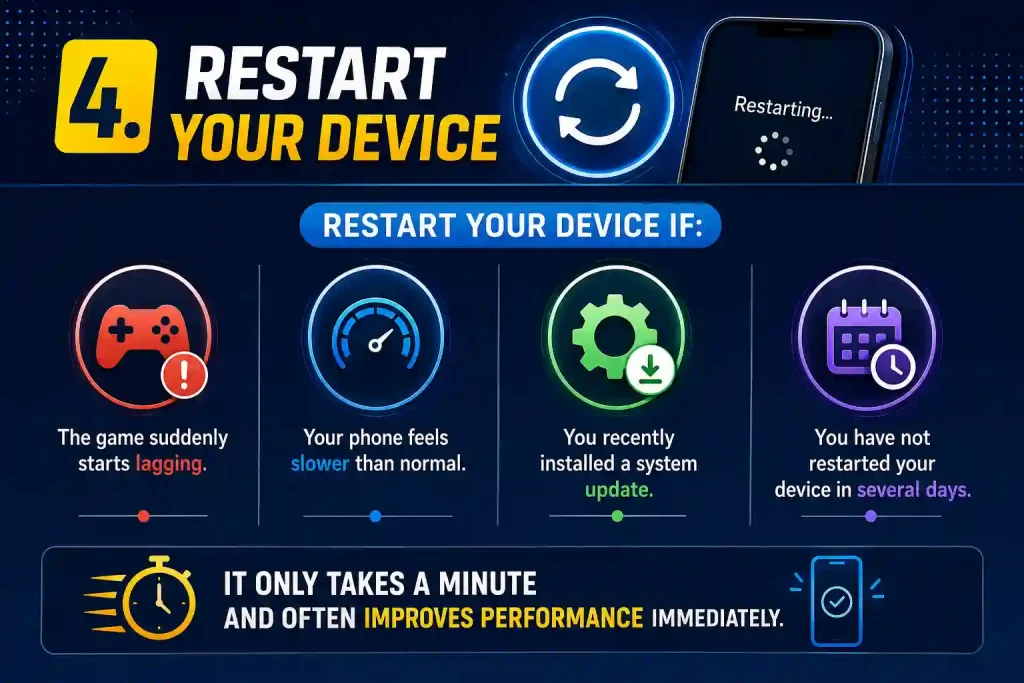
4. Restart Your Device
Restarting your device clears temporary memory and stops background processes that continue running without your knowledge. Many players keep their phones running for days without restarting them. Over time, temporary files build up and consume valuable system resources.
Restart your device if:
It only takes a minute and often improves performance immediately.
.
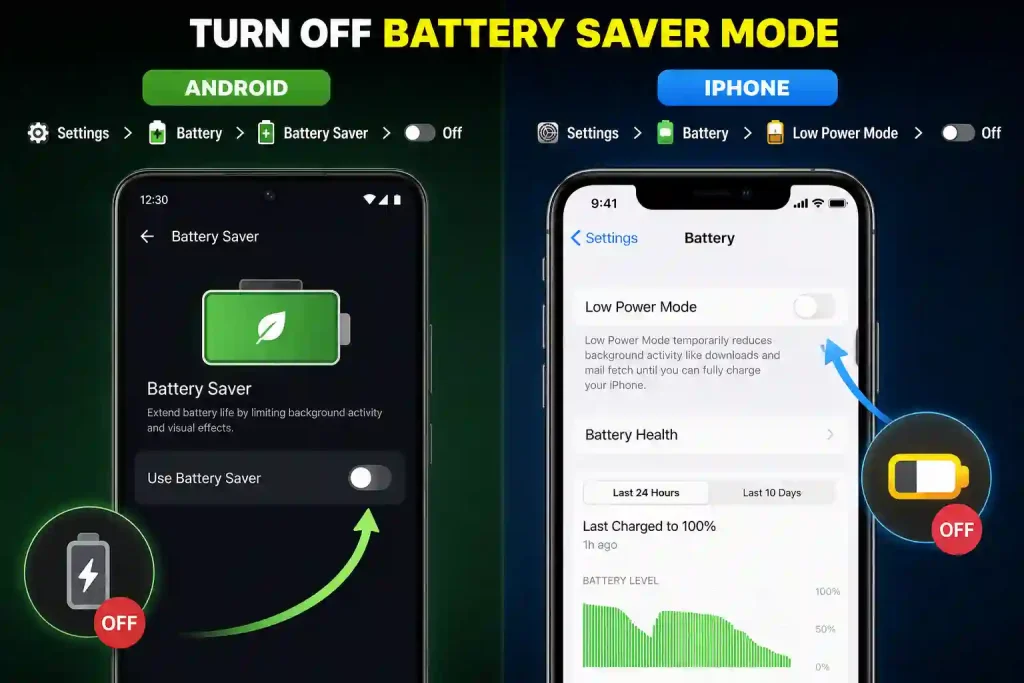
5. Turn Off Battery Saver Mode
Battery Saver is designed to extend battery life by reducing processor speed. While this is useful when your battery is low, it also reduces gaming performance. If Battery Saver is enabled, Geometry Dash may run at a lower frame rate, and your controls may feel less responsive.
Android
Go to:
Settings → Battery → Battery Saver → Off
iPhone
Go to:
Settings → Battery → Low Power Mode → Off
If your battery has enough charge, disable this feature before playing. Your device will be able to use its full processing power, giving you smoother gameplay and more consistent performance.
.
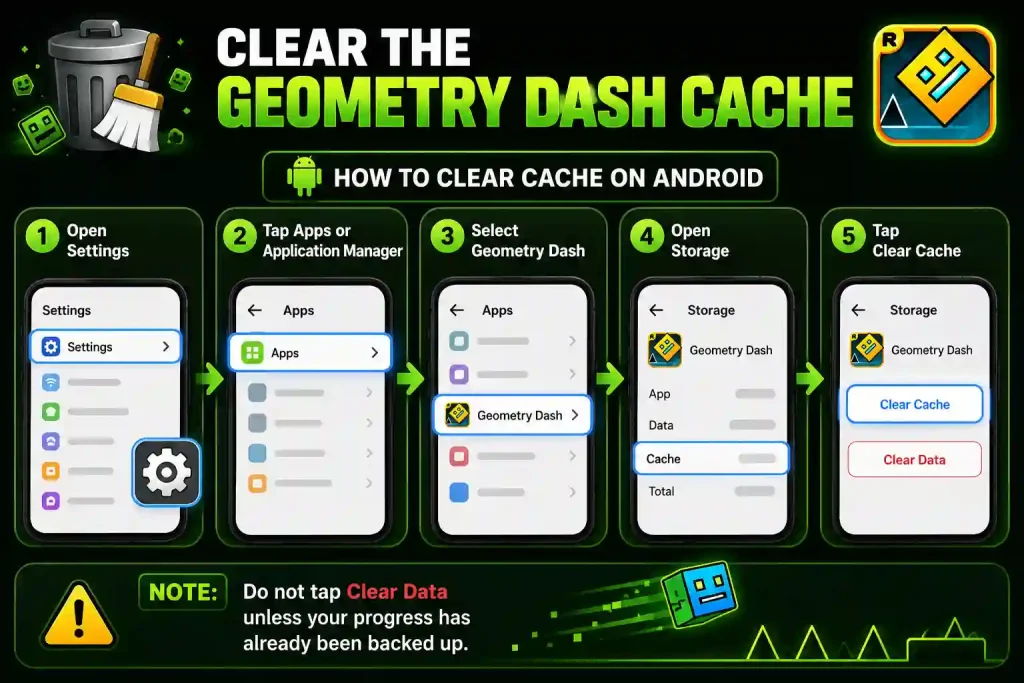
6. Clear the Geometry Dash Cache
If you have already tried the basic fixes and the game still feels slow, clearing the cache should be your next step. Cache files are temporary files that help apps load faster. However, these files can become outdated or corrupted over time, especially after a game update. When that happens, Geometry Dash may take longer to load levels, respond slowly to taps, or freeze for a few seconds during gameplay.
If you are still wondering how to reduce lag in Geometry Dash, clearing the cache is one of the safest fixes because it removes temporary files without deleting your saved progress.
How to Clear Cache on Android
- Open Settings.
- Tap Apps or Application Manager.
- Select Geometry Dash.
- Open Storage.
- Tap Clear Cache.
Launch the game again and check whether the performance has improved.
Note: Do not tap Clear Data unless your progress has already been backed up.
.
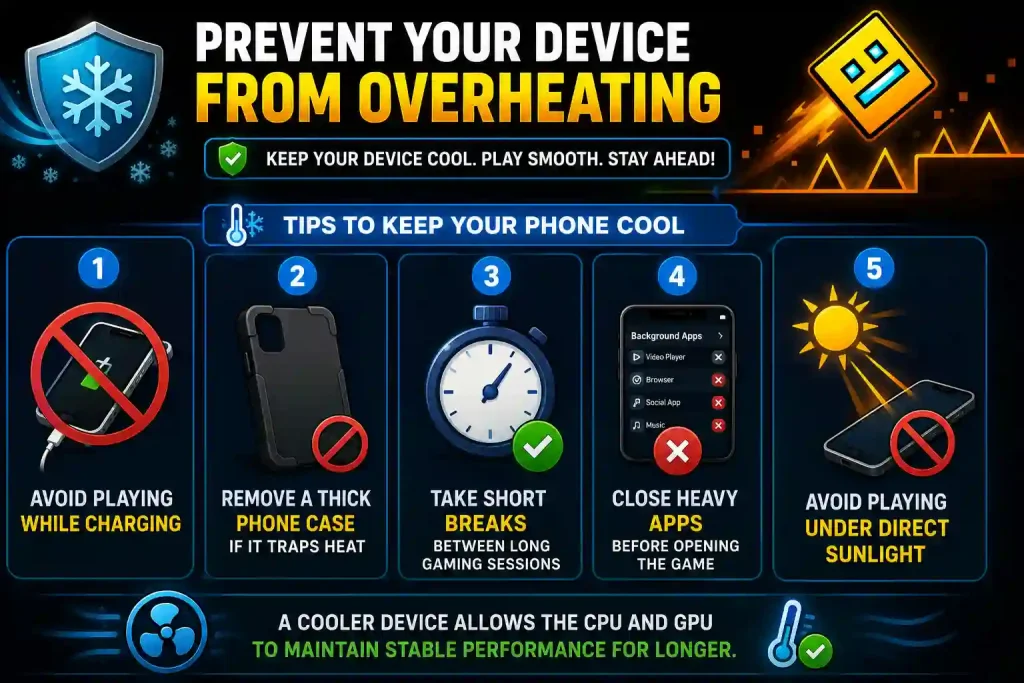
7. Prevent Your Device from Overheating
Many players only notice lag after playing for twenty or thirty minutes. This usually happens because the device becomes too hot. When your phone overheats, the processor automatically slows itself down to prevent hardware damage. This safety feature is called thermal throttling, and it is one of the main causes of sudden FPS drops in mobile games. Keeping your device cool can make a noticeable difference during longer gaming sessions.
Tips to Keep Your Phone Cool
A cooler device allows the CPU and GPU to maintain stable performance for a longer time.
.
8. Update Your Device Software
Another effective way to learn how to reduce lag in Geometry Dash is by keeping your operating system updated. Android, iOS, and Windows updates often include performance improvements, bug fixes, and better compatibility with games. If your device is running an old version of the operating system, it may struggle to work efficiently with the latest Geometry Dash update.
Check for Software Updates
Android
Settings → Software Update
iPhone
Settings → General → Software Update
Windows PC
Settings → Windows Update
After installing the latest update, restart your device before launching the game again.
.
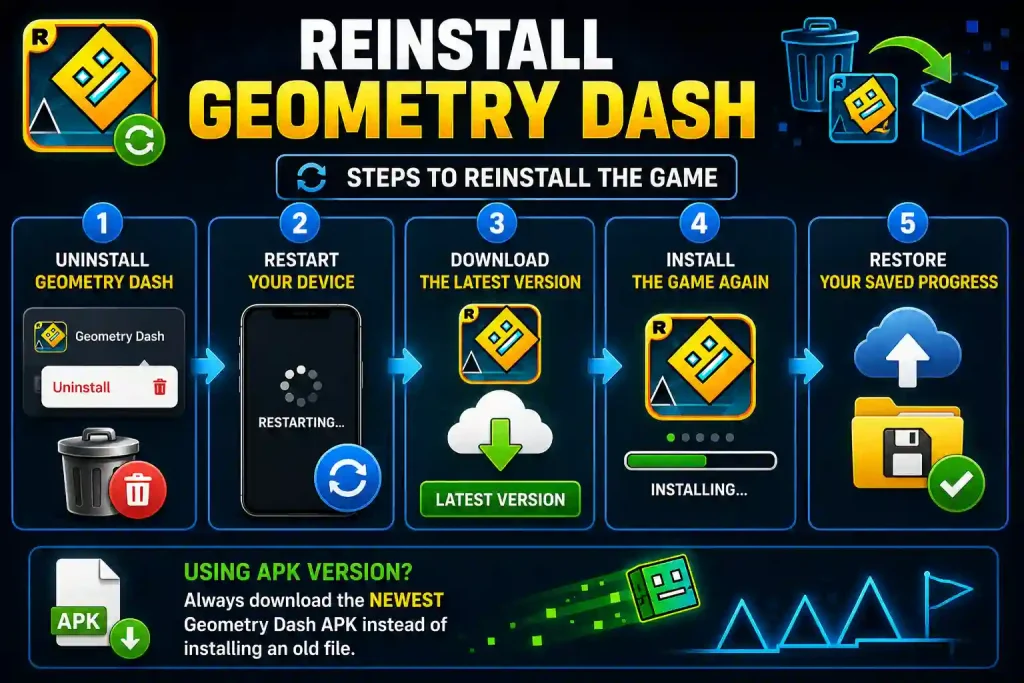
9. Reinstall Geometry Dash
Sometimes game files become damaged after an interrupted update or an incomplete installation. In these situations, reinstalling the game is often the quickest solution. Before uninstalling Geometry Dash, make sure your game progress is saved to your account if cloud saving is available.
Steps to Reinstall the Game
If you use the APK version, download the newest Geometry Dash APK instead of installing an old file stored on your phone.
.
10. Play on a Device That Meets the Recommended Requirements
If you have tried every solution in this guide and the game still lags, your device may simply be too old for smooth gameplay. Geometry Dash can run on older phones, but newer updates, custom levels, and visual effects require more processing power than before. For a better experience, your device should meet these recommendations.
| Component | Recommended |
| RAM | 4 GB or More |
| Free Storage | 5 GB or More |
| Android | Android 10 or Later |
| iPhone | Latest iOS Version |
| Processor | Mid-range or Better |
You do not need an expensive flagship phone, but using modern hardware will provide smoother gameplay and more stable FPS.
.
Best Practices Before Every Gaming Session
Following a few simple habits before launching the game can help prevent lag.
| Action | Why It Helps |
| Close background apps | Frees RAM and CPU resources |
| Keep 5 GB or more free storage | Improves system performance |
| Update Geometry Dash | Fixes bugs and improves stability |
| Restart your device | Clears temporary memory |
| Turn off Battery Saver | Allows maximum performance |
| Keep your phone cool | Prevents thermal throttling |
These five fixes solve lag for many players. In the next part, you’ll learn five more advanced solutions, the best settings for Android, iPhone, and PC, along with FAQs and the conclusion.
.
Device-Specific Tips
Android
Android users can improve performance by following a few extra steps.
iPhone
Although iPhones are already well optimized, these tips can still improve performance.
Windows PC
If you play Geometry Dash through Steam, these tips can help improve performance.
.
Mistakes That Make Geometry Dash Lag Worse
Some habits can reduce your device’s performance without you realizing it. Try to avoid these common mistakes.
Avoiding these mistakes can improve gameplay without installing any third-party optimization apps.
.
Frequently Asked Questions
How do I reduce lag in Geometry Dash on Android?
Close background apps, clear the cache, free up storage, install the latest game update, and disable Battery Saver mode before playing.
Why is Geometry Dash lagging even on a good phone?
Lag can still happen because of overheating, temporary software bugs, outdated game files, or too many background processes.
Does clearing the cache improve Geometry Dash performance?
Yes. Clearing the cache removes temporary files that may slow down the game after updates or long-term use.
Can low storage cause lag in Geometry Dash?
Yes. When your storage is almost full, Android and iOS cannot manage temporary files efficiently, which may affect game performance.
Does Battery Saver reduce FPS?
Yes. Battery Saver limits processor performance to save power, which often lowers FPS and makes the game feel less responsive.
Should I reinstall Geometry Dash?
Reinstalling the game is a good option if none of the other fixes work. Just make sure your progress is backed up before uninstalling.
.
Final Thoughts
Knowing how to reduce lag in Geometry Dash can make a huge difference in your gaming experience. Most performance issues are caused by background apps, low storage, outdated software, overheating, or old game files rather than the game itself. By following the ten fixes in this guide, keeping Geometry Dash updated, and maintaining your device regularly, you can enjoy smoother gameplay, better FPS, and more responsive controls every time you play.
.